If a caller asked for a human and Riley took a message instead of transferring, the most common cause is simple: the transfer target is a phone line that forwards back to BloomLine. Riley has a built-in transfer-loop guard, and when a transfer would just loop back to Riley, it takes a message instead so the caller is never bounced in a circle. The fix takes about two minutes: point your transfer targets at a real phone a human answers, then run the live transfer test.
What the transfer-loop guard does
When you go live, your shop's main line forwards to BloomLine. If one of your transfer targets is that same shop line, a "transfer to a human" would ring the shop line, the shop line would forward right back to BloomLine, and the caller would end up talking to Riley again in an endless loop. The guard exists to prevent exactly that. When it detects a target that routes back to Riley, the transfer is blocked and Riley falls back to taking a message.
Fix it: point transfer targets at a real team phone
- Open the Setup Assistant at Dashboard > Setup and go to the Human handoff step.
- Review your transfer targets. There are slots for Owner cell, Manager, and Weddings and events, each with a name and a number.
- Make sure every number is a direct line a person actually picks up: an owner's cell, a manager's cell, a back-office line. It must not be the shop's main number, because that line now forwards to BloomLine.
- Run the live transfer test on the same step. It places a real test transfer and proves the target rings a human. If the test rings your phone, real callers will reach you too.
Check your answering mode too
The same rule applies on the Call answering tab at Dashboard > Shop config > Call answering. There you choose between two modes: Riley answers immediately, or Ring my team first, then Riley. In the backup mode, your team phone rings for a few seconds and Riley takes over only if nobody answers. The team phone number you enter here must also be a real phone, not the forwarded shop line, for the same loop reason.
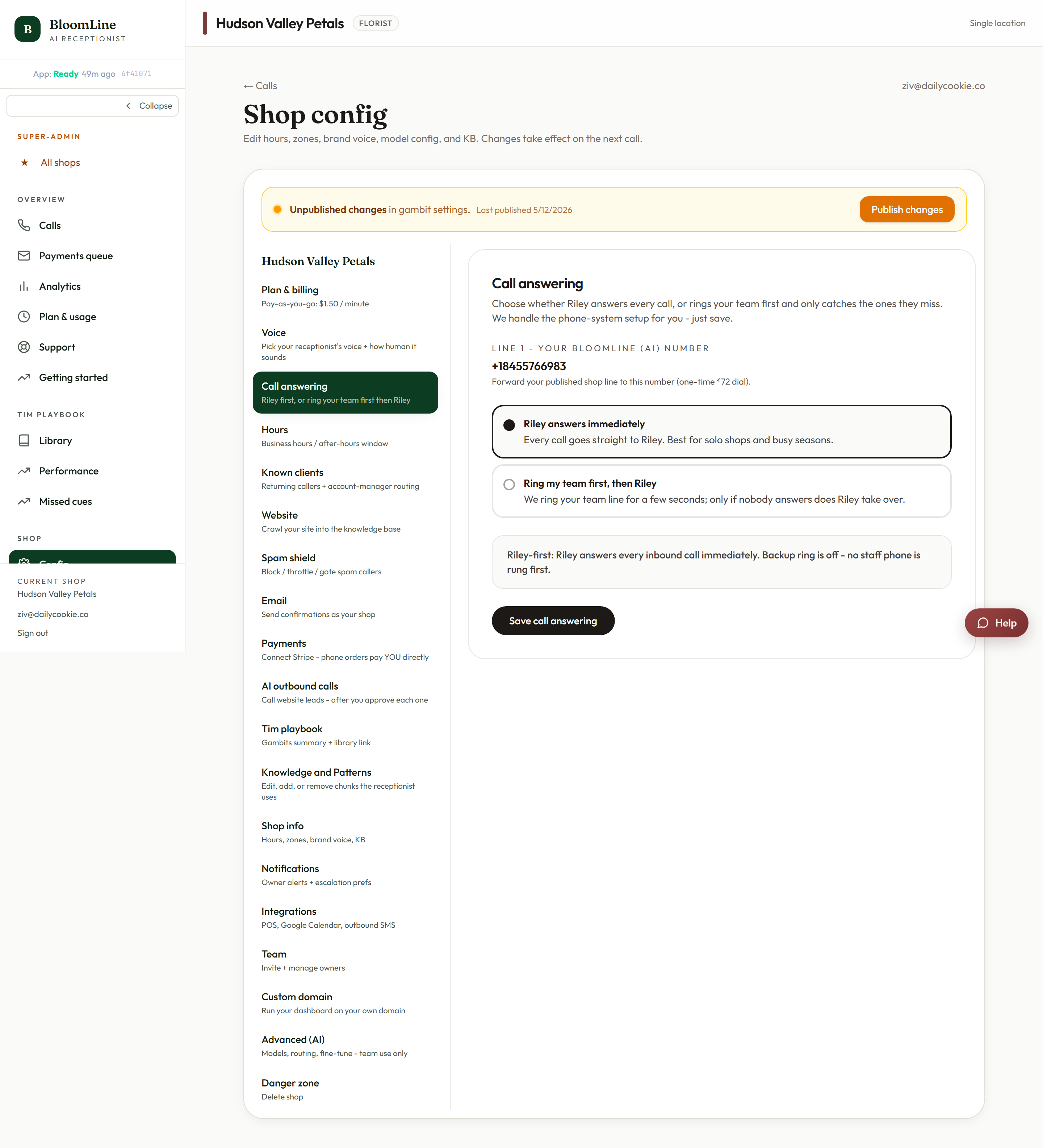
When you save on this tab, BloomLine also re-routes the number, so your change is picked up on the very next call.
Verify before you move on
- Run the live transfer test in the Human handoff step and confirm a human phone rings.
- Call your shop line from a cell phone, ask for a human, and confirm Riley transfers instead of taking a message.
Once the targets point at real phones, Riley transfers normally and only takes a message when that is what you have configured.
Still stuck? Submit a ticket from this help center and we'll take it from there.
Was this article helpful?
That’s Great!
Thank you for your feedback
Sorry! We couldn't be helpful
Thank you for your feedback
Feedback sent
We appreciate your effort and will try to fix the article