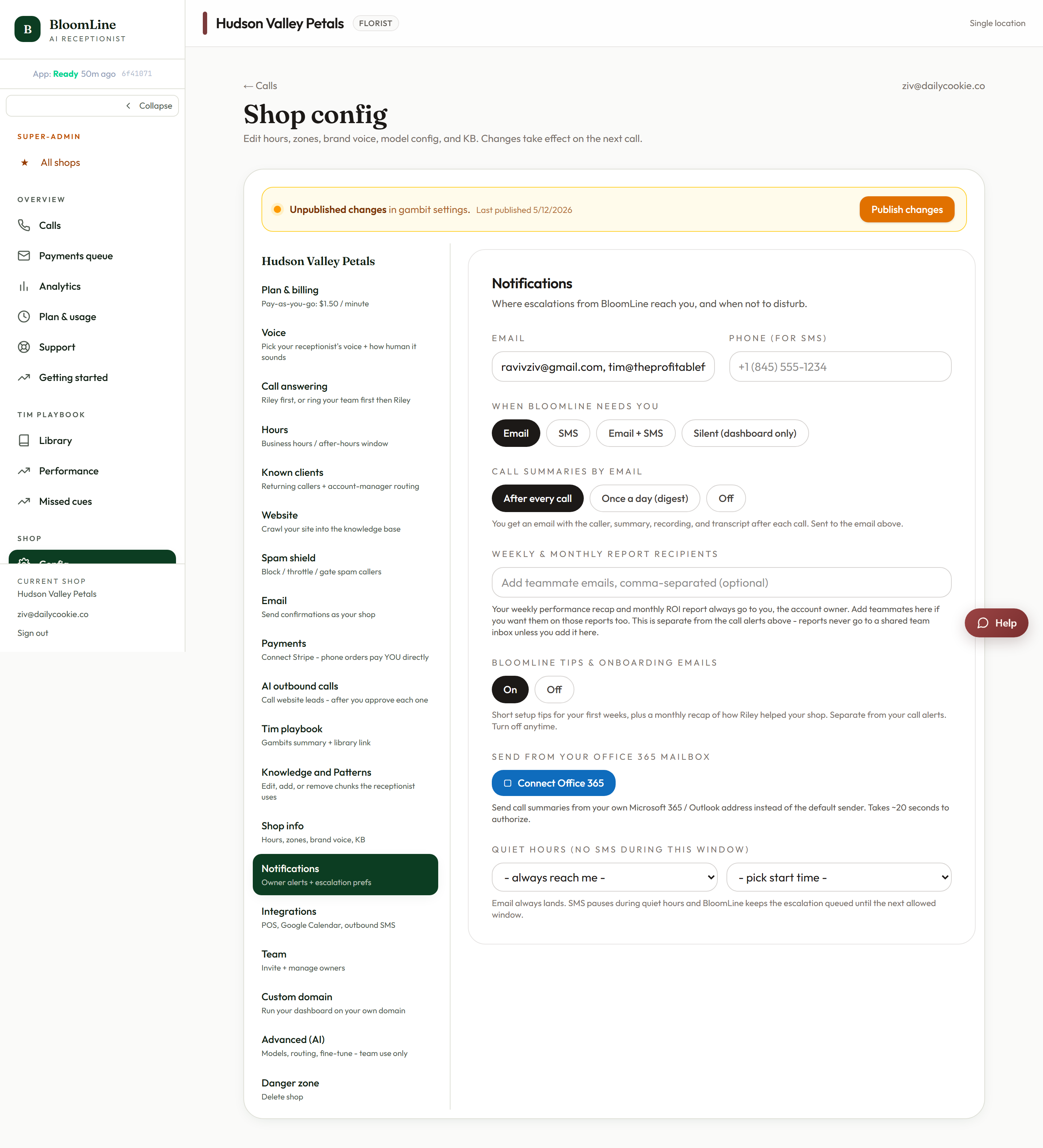
Missing call alerts are almost always a notification setting rather than a delivery failure. Three settings decide whether an email or text reaches you: the channel, the call-summaries frequency, and quiet hours. All three live on one screen, and there is a built-in test that proves alerts reach you before you rely on them.
Step 1: Check the channel
Open Dashboard > Shop config > Notifications. The Channel setting controls how BloomLine reaches you: Email, SMS, Email + SMS, or Silent (dashboard only). If the channel is set to Silent, nothing is sent anywhere - everything still shows on the dashboard, but your inbox and phone stay quiet. If you expected email and only the SMS channel is selected (or the other way around), that also explains the gap.
Step 2: Check the call-summaries frequency
On the same tab, Call summaries has three settings:
- After every call - you get a summary as soon as each call ends
- Once a day (digest) - summaries are batched into a single daily email, so an individual call will not produce its own message
- Off - no call summaries are sent at all
If you are on the daily digest, the email about this morning's call is coming - just later, bundled with the rest of the day.
Step 3: Check the recipients
Verify the email field is your current address and check the teammate emails field (comma-separated) for typos. For texts, confirm the phone for SMS field is right. While you are there, also review the "When BloomLine needs you" escalation preference, which controls how urgent situations reach you.
Step 4: Check quiet hours
Quiet hours suppress SMS during the window you set - no texts arrive while quiet hours are active. If a call came in overnight and you never got the text, quiet hours are the likely reason. The call is still on your dashboard and in your email if the email channel is on.
Step 5: Prove alerts reach you
The Setup Assistant's Call alerts step (at Dashboard > Setup) includes a "Prove the alerts reach you" test. Run it after any change: it sends a real alert to your configured addresses and number so you know the pipeline works end to end. The same step also lets you set a second recipient and your SMS cell.
Two more things worth a look
- Publish your changes. After editing shop config tabs, a Publish changes bar appears above the tabs. Staged settings only take effect once you publish.
- Check spam. If the test alert never lands, look in your spam or junk folder and mark BloomLine as a safe sender.
Still stuck? Submit a ticket from this help center and we'll take it from there.
Was this article helpful?
That’s Great!
Thank you for your feedback
Sorry! We couldn't be helpful
Thank you for your feedback
Feedback sent
We appreciate your effort and will try to fix the article