Before you open a ticket about calls failing or the dashboard misbehaving, spend thirty seconds on the public status page at /status. It shows the live health of every part of BloomLine, so you immediately know whether the problem is a platform outage we are already on, or something specific to your shop that a ticket will solve fastest.
The four components
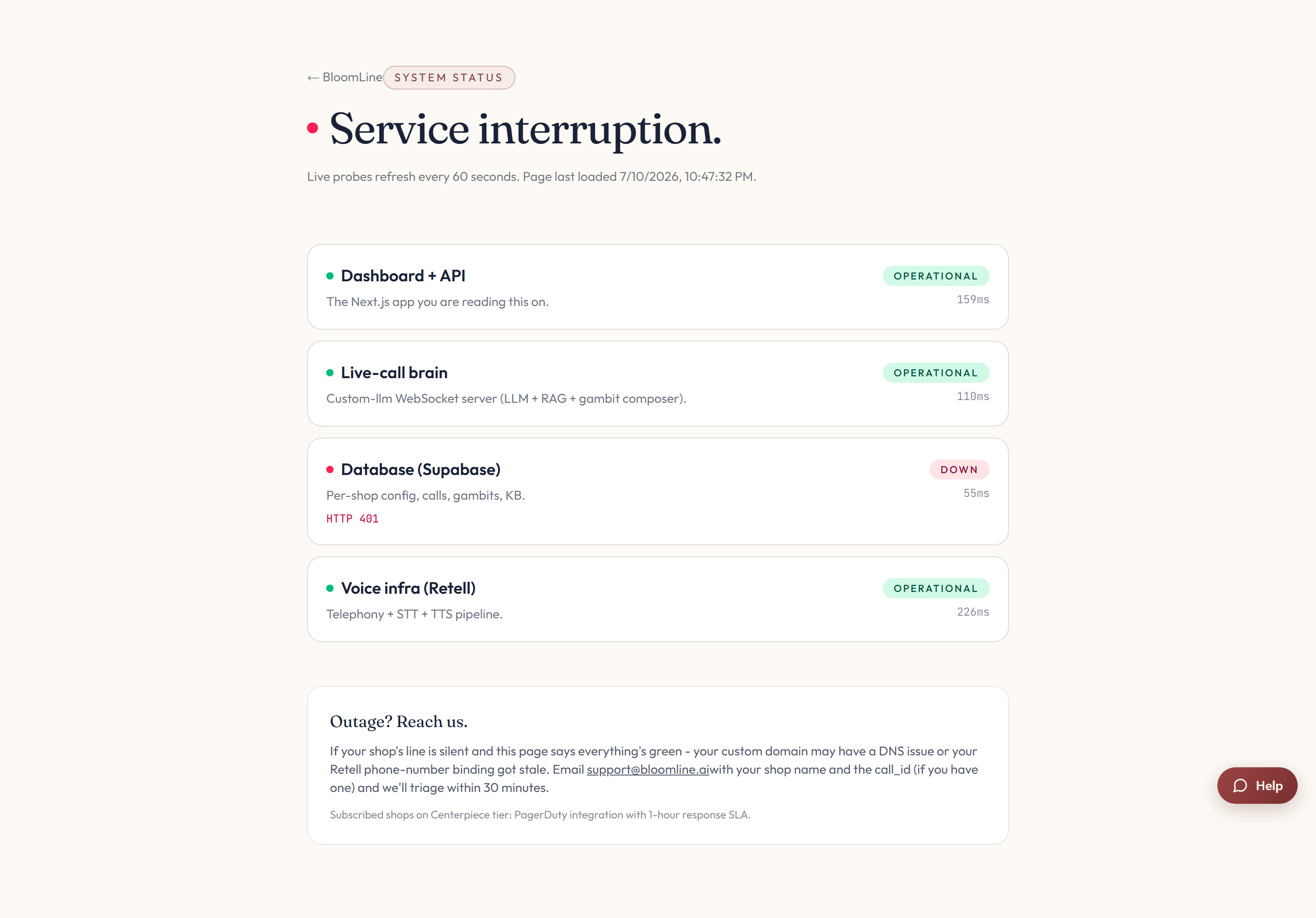
The status page shows one chip per component:
- Dashboard + API - the web dashboard you sign in to and the backend it talks to. If this is unhealthy, pages may not load or save.
- Live-call brain - the AI that actually answers and holds conversations with your callers. If this is unhealthy, calls may fail or sound wrong.
- Database (Supabase) - where your calls, transcripts, and settings are stored. If this is unhealthy, data may not appear or update.
- Voice infra (Retell) - the telephony and voice layer that connects phone calls to the brain. If this is unhealthy, callers may hear errors or silence.
What each status means
- Operational - the component is healthy and working normally.
- Degraded - the component is up but not performing normally. You may see slowness or intermittent issues.
- Down - the component is not working. Expect the related features to fail until it recovers.
- Unknown - the health check could not determine the component's state. Treat it as "possibly having trouble" and check back shortly.
If something is not Operational
A Degraded or Down chip means the issue is on our side and affects more shops than yours - you do not need to troubleshoot your own settings. Use the "Outage? Reach us" contact block on the status page to get in touch directly. Including your shop name and what your callers are experiencing helps us confirm the impact.
If everything is Operational but you still have a problem
All-green chips mean the platform is healthy, so the issue is most likely specific to your shop: a forwarding setting, a notification preference, a transfer target, or similar. Open a ticket from Dashboard > Support with a description of what you are seeing, and the team will dig into your shop's configuration. Checking the status page first and mentioning that it was all green saves a round trip in the ticket.
Still stuck? Submit a ticket from this help center and we'll take it from there.
Was this article helpful?
That’s Great!
Thank you for your feedback
Sorry! We couldn't be helpful
Thank you for your feedback
Feedback sent
We appreciate your effort and will try to fix the article