You decide exactly who hears about your calls, on which channel, and how often - from an alert after every single call down to one tidy daily digest, or nothing at all. It all lives in one place: the Notifications tab at https://km-florist-receptionist.vercel.app/dashboard/shop?tab=notifications.
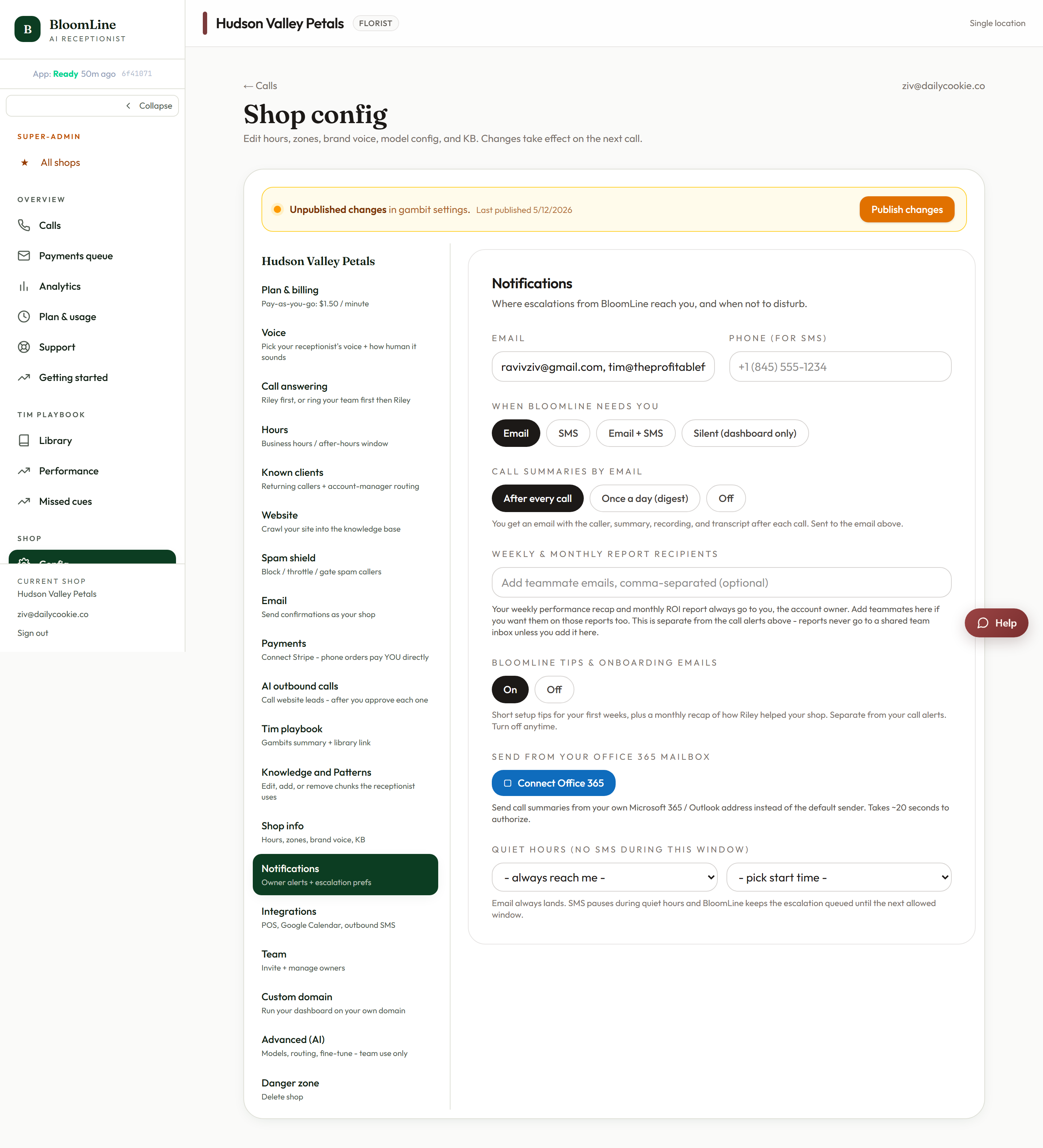
Who receives the alerts
- Email - your main notification address.
- Teammate emails - add more recipients, separated by commas. Great for a manager or a second owner who should see the same alerts.
- Phone (for SMS) - the cell number that gets text alerts when your channel includes SMS.
Pick your channel
The channel setting controls how alerts reach you:
- Email - alerts arrive by email only.
- SMS - alerts arrive as texts to the phone number above.
- Email + SMS - both. The belt-and-suspenders option for busy seasons.
- Silent (dashboard only) - nothing is sent. Activity still shows up in your dashboard, but no emails or texts go out.
Alerts vs the recap: pick a frequency
The Call summaries setting is where you choose between real-time alerts and a report-style recap:
- After every call - an immediate summary for each call. Best while you are still building trust in your receptionist, and for shops where every order matters right now.
- Once a day (digest) - one daily recap covering everything. Best once BloomLine has proven itself and you'd rather read a single summary with your morning coffee.
- Off - no summaries at all. Careful with this one: if you stop getting call emails and wonder why, check that this isn't set to Off.
Escalations and quiet hours
- When BloomLine needs you - your escalation preference, controlling how you're reached when a call genuinely needs a human decision.
- Quiet hours - a window during which no SMS is sent. Set this to your sleeping hours so a 2 a.m. after-hours call doesn't buzz your nightstand. Everything still lands in the dashboard.
Send from your own Office 365 mailbox
The Notifications tab also includes a Send from your Office 365 mailbox block. Connect your mailbox and BloomLine sends through it; use Disconnect to stop at any time.
Save and publish
The Notifications tab is part of Shop config, so after you edit anything, look for the Publish changes bar above the tabs. Click it to push your staged settings live - they take effect from the next call.
Prefer a guided setup?
The Setup Assistant's Call alerts step walks you through the same choices: your owner email, a second recipient, your cell for SMS, the frequency, and quiet hours. It ends with a Prove the alerts reach you test that sends a real alert so you can confirm delivery before you rely on it. Find it at https://km-florist-receptionist.vercel.app/dashboard/setup.
Suggested setups
- Solo owner - Email + SMS, after every call, quiet hours overnight.
- Owner + manager - your email plus the manager's in teammate emails, once-a-day digest for you, and your cell on SMS for escalations.
- Hands-off - Email only, once-a-day digest. Check the dashboard when you want detail.
Still stuck? Submit a ticket from this help center and we'll take it from there.
Was this article helpful?
That’s Great!
Thank you for your feedback
Sorry! We couldn't be helpful
Thank you for your feedback
Feedback sent
We appreciate your effort and will try to fix the article