Your BloomLine dashboard lives at https://km-florist-receptionist.vercel.app/login, and there are two ways in: your email and password, or a magic link sent to your inbox. Both land you in the same dashboard. This article walks through each option, resetting a forgotten password, and what to do when a link says it is expired or invalid.
Two sign-in modes
The login page has a mode switch that flips between password mode and magic link mode. Use whichever you prefer: password is fastest if you remember it, and the magic link means you never have to remember anything.
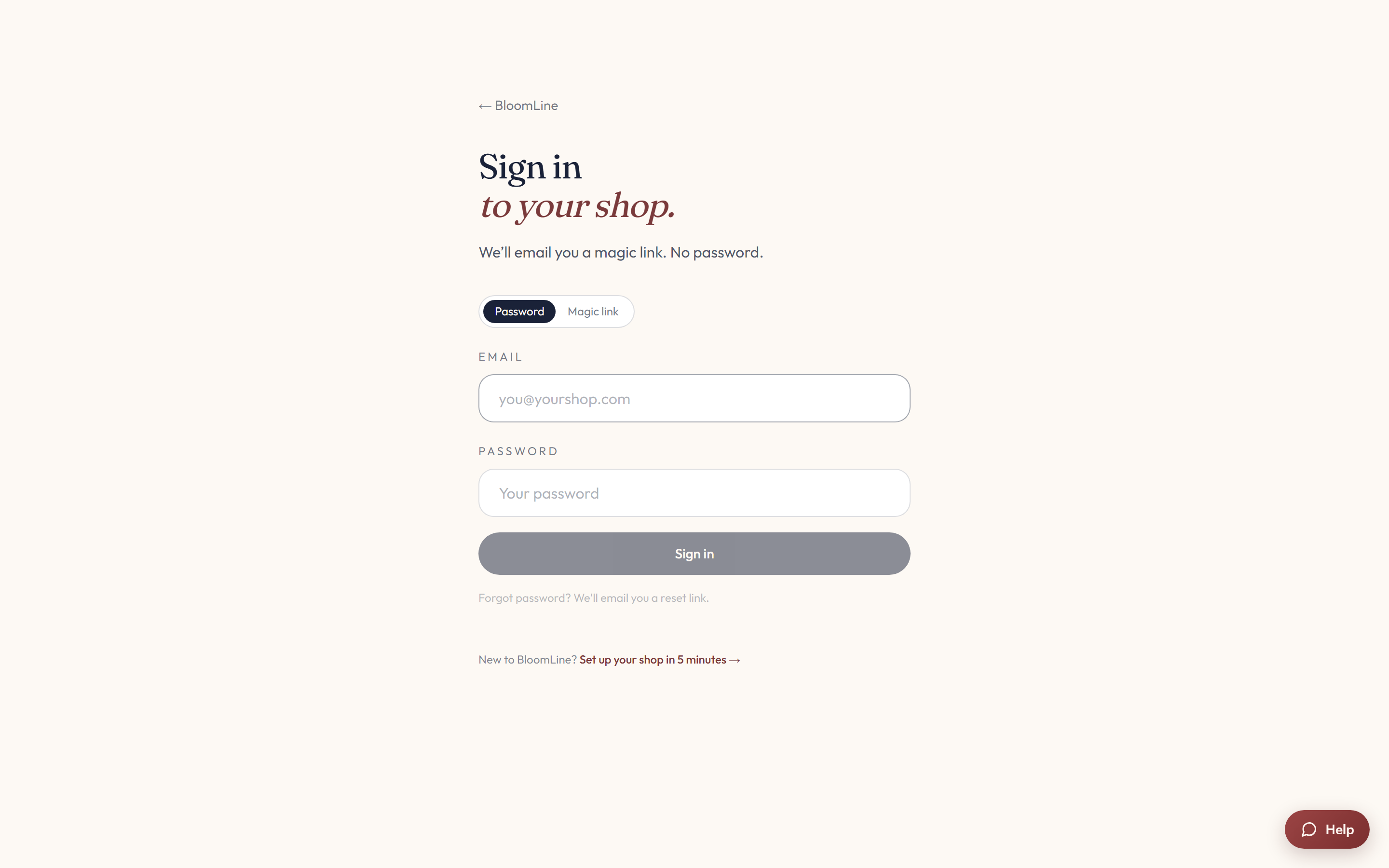
Sign in with email and password
- Go to https://km-florist-receptionist.vercel.app/login.
- Make sure the form is in password mode (use the mode switch if it is showing magic link).
- Enter your email and password.
- Click Sign in. You land in your dashboard.
Sign in with a magic link
- On the login page, switch to magic link mode.
- Enter the email address on your BloomLine account.
- Click Send magic link.
- Open the email and click the link. It briefly passes through an auth callback page and then drops you straight into the dashboard - no password needed.
Forgot your password
- On the login page, click Forgot password. BloomLine emails you a recovery link.
- Click the link in the email. It verifies you through the auth callback and opens the reset-password page.
- Type your new password in the New password field.
- Click Save new password, then continue to the dashboard.
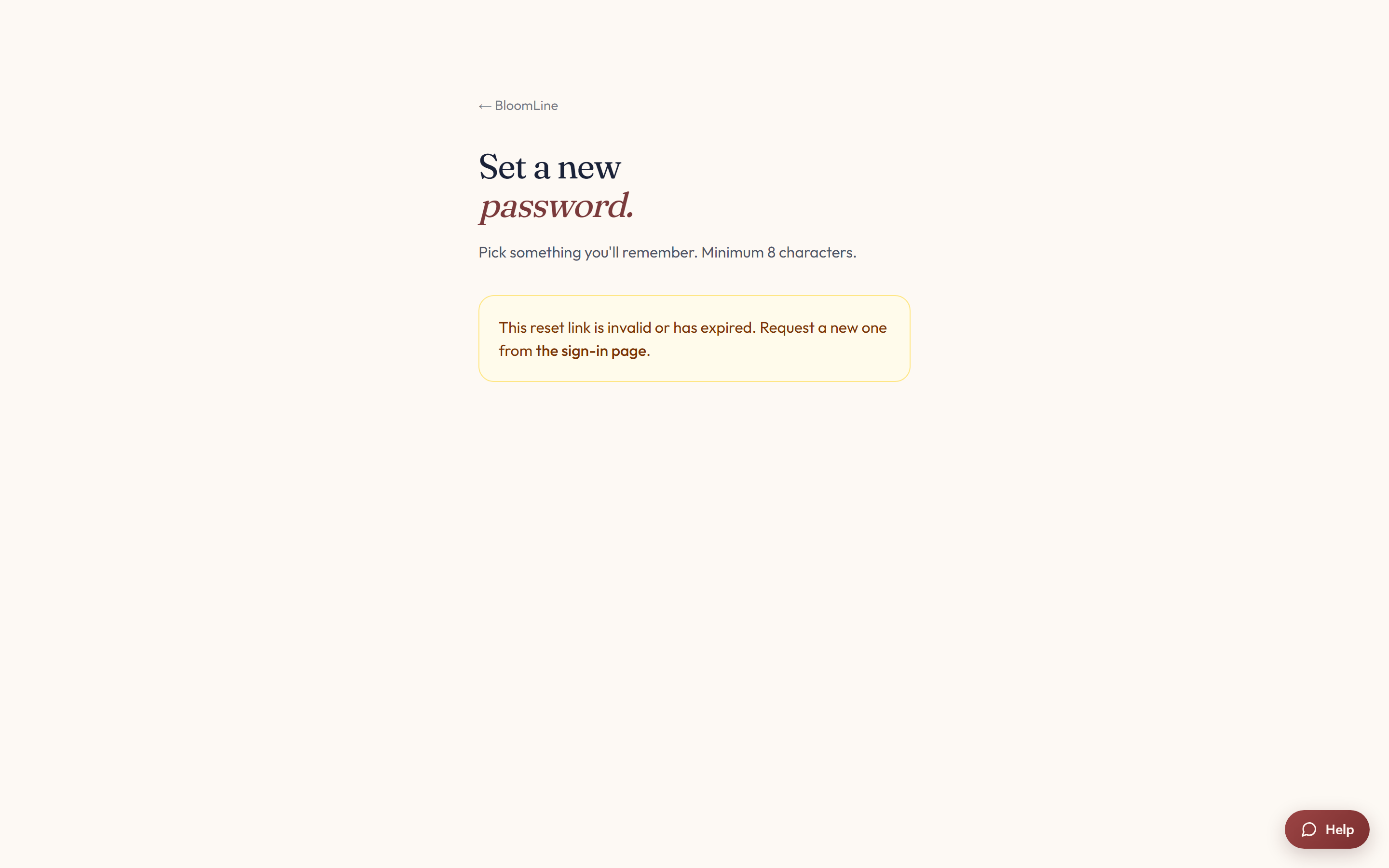
Fix "link expired / invalid"
Magic links and password-recovery links are single-use and time-limited, so this error is almost always about the link itself, not your account. Work through these in order:
- Use the newest email. If you requested a link more than once, only the most recent one works. Delete the older emails so you don't click a stale link by mistake.
- Click it once, promptly. A link that was already opened (even by an email app that previews links) counts as used. Request a fresh link and click it as soon as it arrives.
- Click, don't copy. If the link was copied and pasted or forwarded, part of it may have been cut off. Click it directly from the original email.
- Request a fresh link. Go back to https://km-florist-receptionist.vercel.app/login and send yourself a new magic link or recovery email, then complete the flow right away.
If a fresh link fails immediately too, check your spam folder for the newest email and confirm you are entering the exact email address your shop is registered under.
New to BloomLine?
If you don't have an account yet, the login page links to the onboarding wizard, which creates your shop by scanning your website. Your shop is auto-linked to the email you sign in with on your next login.
Still stuck? Submit a ticket from this help center and we'll take it from there.
Was this article helpful?
That’s Great!
Thank you for your feedback
Sorry! We couldn't be helpful
Thank you for your feedback
Feedback sent
We appreciate your effort and will try to fix the article