Riley never dials a website lead without your permission. Every outbound call sits in a human approval gate first: you approve it or decline it, from the dashboard or straight from the SMS on your phone. This article shows you where that gate lives and what each status means.
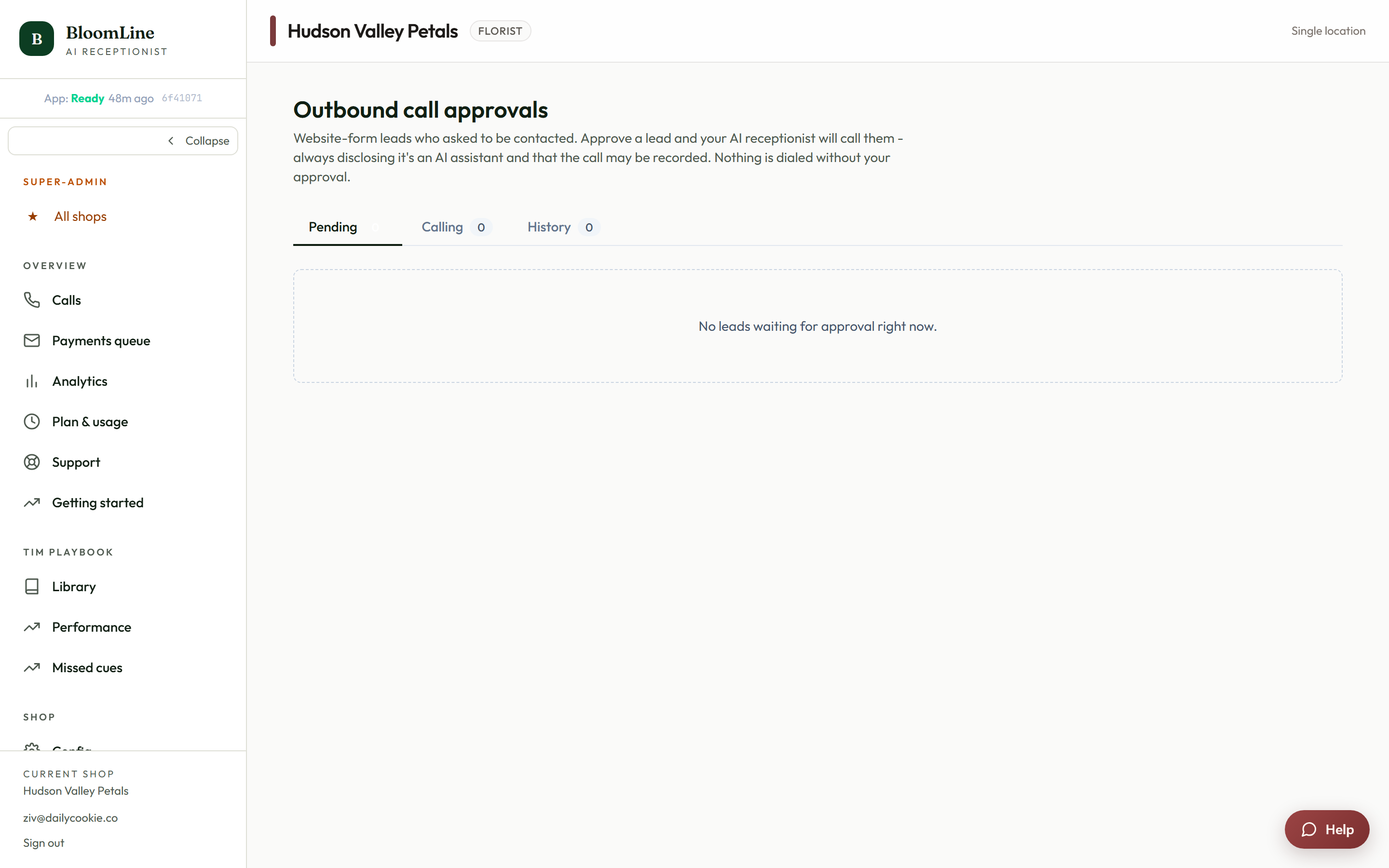
Where to approve calls
- Open Outbound approvals in your dashboard (https://km-florist-receptionist.vercel.app/dashboard/outbound-approvals).
- Each lead appears as a row with two buttons: Approve call and Don't call.
- Click Approve call to queue the lead for dialing, or Don't call to close it out. That's the whole decision.
You can also approve by SMS. If you set your phone number in the AI outbound calls tab, each new lead triggers a text to that number, and you can say yes or no without opening the dashboard at all.
What each status chip means
- Awaiting approval: the lead just arrived and is waiting on your decision.
- Approved - queued: you said yes. Riley will dial within your calling hours.
- Calling now: the call is in progress at this moment.
- Connected: Riley reached the lead and the conversation happened.
- Unreachable: Riley tried up to your max call attempts and never got through.
- Expired: the approval window passed without a decision, so the lead was never dialed.
- Cancelled: the call was called off before it happened.
- Do not call: you declined this lead. Riley will not dial it.
What happens after you approve
An approved lead doesn't necessarily ring the second you click the button. Riley respects the calling hours and time zone you set in the AI outbound calls tab, so a lead approved at 10 pm waits politely until your window opens. If the lead doesn't answer, Riley retries up to your maximum attempts, then marks the lead unreachable rather than pestering them forever.
Why leads expire
Every approval request has a shelf life - the approval window (in hours) from your outbound settings. If the window closes before you decide, the lead flips to Expired and is not called. If you're seeing a lot of Expired chips, consider lengthening the approval window or double-checking that the SMS approval phone on the settings tab is a number you actually carry.
Where to change the behavior
Calling hours, max attempts, the approval window, and your SMS approval phone all live in Shop config > AI outbound calls. See "Turn on AI outbound calls to your website leads" for the full setup walkthrough.
Still stuck? Submit a ticket from this help center and we'll take it from there.
Was this article helpful?
That’s Great!
Thank you for your feedback
Sorry! We couldn't be helpful
Thank you for your feedback
Feedback sent
We appreciate your effort and will try to fix the article