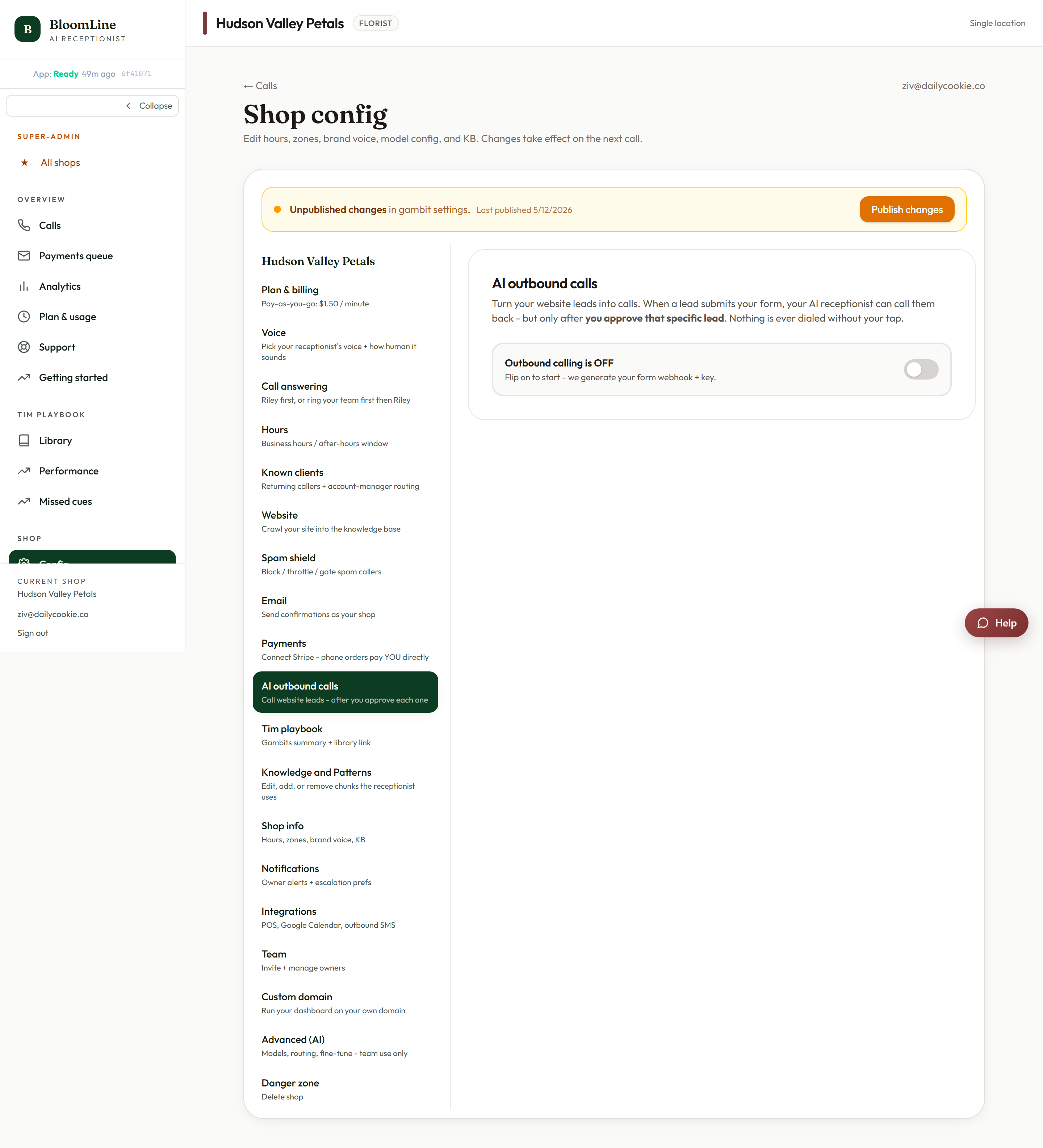
BloomLine can call your website leads back for you. When a lead comes in from your site, you get an approval request, and once you say yes, Riley dials the lead within the calling hours you set. Nothing is ever dialed without your sign-off. You turn the feature on and shape how it behaves from the AI outbound calls tab in Shop config.
How outbound calling works
- A lead arrives from your website.
- BloomLine sends you an approval request - as an SMS to the phone number you set, and in your dashboard.
- You approve or decline each lead. Only approved leads are ever dialed.
- Riley calls the lead during your calling hours, retrying up to the maximum number of attempts you allow.
Turn it on
- In your dashboard, open Shop config and pick the AI outbound calls tab (https://km-florist-receptionist.vercel.app/dashboard/shop?tab=outbound-calls).
- Switch on Enable outbound calls.
- Set your Calling hours and Time zone so leads are only dialed when it's polite to call.
- Set Max call attempts - how many times Riley may retry a lead who doesn't pick up.
- Set the Approval window (hours) - how long a lead waits for your yes or no before the request lapses.
- Enter Your phone so approval requests reach you by SMS.
- Optionally, paste a CRM webhook into Also forward leads to if you want every lead pushed to your CRM as well.
- When you're done, use the Publish changes bar at the top of Shop config. Staged settings go live once you publish.
The settings, explained
- Enable outbound calls: the master switch. Off means no lead is ever dialed, no matter what else is set.
- Calling hours + Time zone: the window in which Riley is allowed to place calls. Approved leads outside the window wait for it to open.
- Max call attempts: after this many unanswered tries, Riley stops and the lead is marked unreachable.
- Approval window (hours): if you don't approve or decline within this window, the request expires and the lead is not called.
- Your phone (for SMS approvals): the cell that receives the approve-or-decline text for each new lead.
- Also forward leads to: an optional Zapier, Make, or CRM webhook that receives a copy of every lead.
Where the approvals live
Every lead waiting on your decision shows up on the Outbound approvals page in your dashboard, alongside its current status. See the companion article "Approve or decline each outbound call" for the full walkthrough of that page.
If you don't see this tab
AI outbound calling can be gated off per shop. If you don't see this page, it isn't enabled for your account yet - contact support to turn it on.
Still stuck? Submit a ticket from this help center and we'll take it from there.
Was this article helpful?
That’s Great!
Thank you for your feedback
Sorry! We couldn't be helpful
Thank you for your feedback
Feedback sent
We appreciate your effort and will try to fix the article