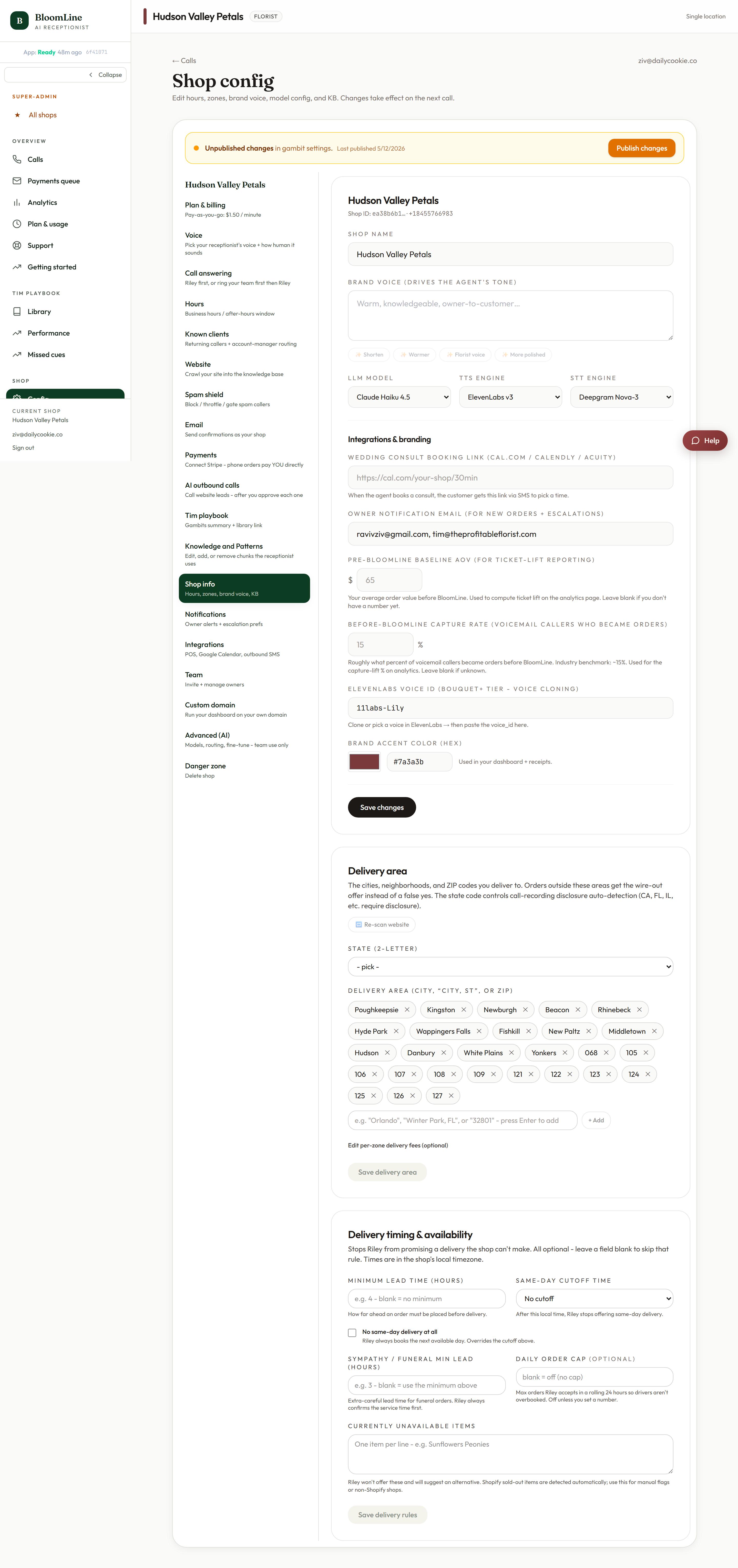
Shop config edits don't hit your live phone line the instant you type them - they are staged first, and a Publish changes bar appears so you decide when the new configuration goes live. This gives you room to work through several tabs, review, and push everything live at once.
How it works
- Open Shop config at https://km-florist-receptionist.vercel.app/dashboard/shop and edit any field in any tab.
- The Publish changes bar appears above the tabs, telling you there is staged configuration waiting.
- Keep editing across as many tabs as you need - the staged set accumulates.
- Click Publish changes. The staged config goes live on the next call after publishing.
- Changed your mind? Dismiss the bar instead.
The 18 tabs it covers
The Shop config shell is a vertical rail of 18 tabs, and the publish bar sits above all of them:
- Plan & billing - usage, Stripe billing, call quotas.
- Voice - voice, languages, naturalness.
- Call answering - who answers first.
- Hours - weekly hours and special dates.
- Known clients - VIP recognition.
- Website - the crawled knowledge source.
- Spam shield - call screening.
- Email - send confirmations as your shop.
- Payments - your Stripe for phone payments.
- AI outbound calls - human-gated lead calling.
- Tim playbook - gambit summary.
- Knowledge and Patterns - the editable knowledge base.
- Shop info - profile, delivery zones, delivery rules.
- Notifications - who hears about calls, and how.
- Integrations - POS connectors, Google Calendar, webhooks, outbound SMS.
- Team - dashboard logins and roles.
- Custom domain - white-label your dashboard.
- Advanced (AI) - engine and routing controls, team use only.
- Danger zone - permanent shop deletion.
Two things worth knowing
- "Live on the next call" means exactly that - a call already in progress when you publish finishes on the old configuration; the next one picks up the new.
- Some pages outside this shell save on their own with their explicit save buttons - the Opening line studio, for example, shows "Saved - goes live on the next call" per save. Inside Shop config, watch for the publish bar as your signal that something is staged.
Habit worth building: never walk away from Shop config while the publish bar is showing. Either publish or dismiss, so you always know what your live line is running.
Still stuck? Submit a ticket from this help center and we'll take it from there.
Was this article helpful?
That’s Great!
Thank you for your feedback
Sorry! We couldn't be helpful
Thank you for your feedback
Feedback sent
We appreciate your effort and will try to fix the article