The opening greeting is the first thing every caller hears, and you can change it whenever you like from the Opening line studio. Open Opening line in the dashboard sidebar (or go straight to https://km-florist-receptionist.vercel.app/dashboard/greeting), edit the text, and save. The new greeting goes live on the very next call.
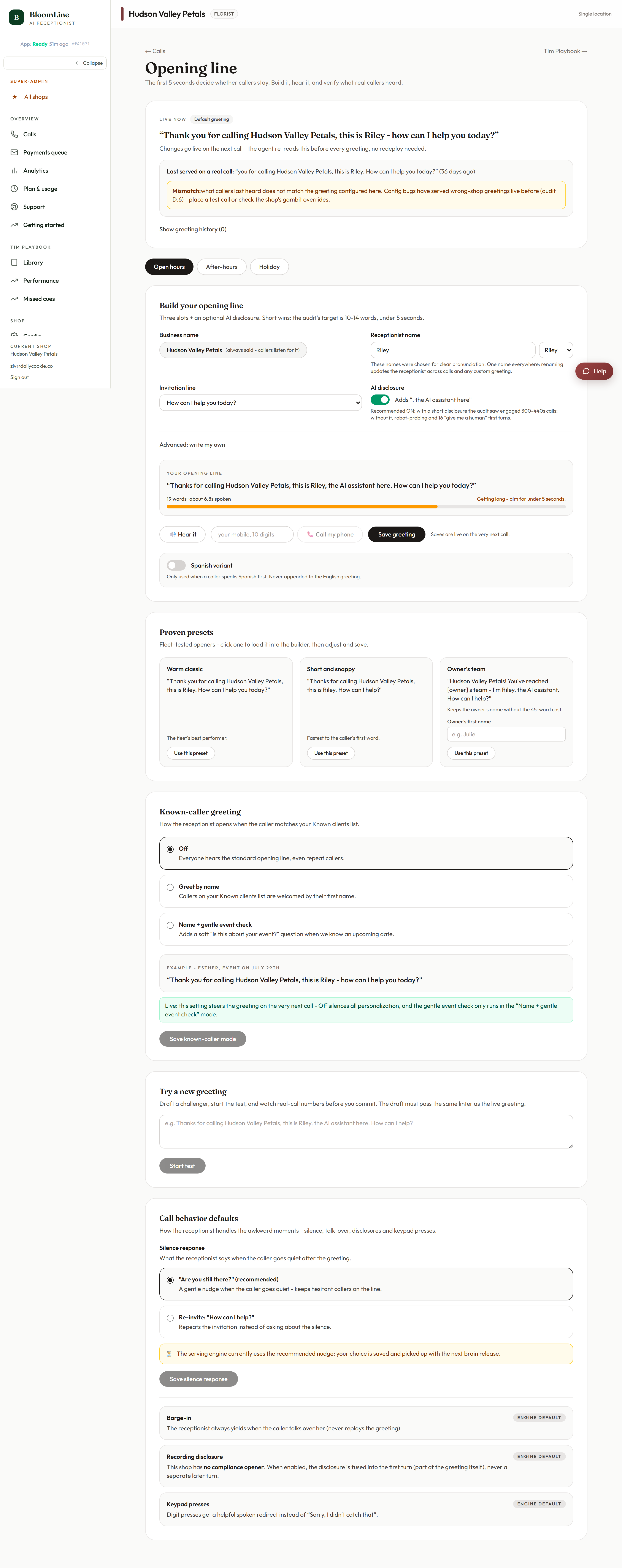
Pick a proven preset or write your own
- Open the Opening line studio at https://km-florist-receptionist.vercel.app/dashboard/greeting.
- Browse the proven presets gallery to start from a greeting that already performs well, or type your own text into the custom greeting field.
- Adjust the custom invitation line - the question that ends the greeting, for example "What can I get started for you?". A strong invitation gets callers talking right away.
- Click Save greeting. You will see the confirmation "Saved - goes live on the next call".
Different greetings for open hours, after-hours, and holidays
The editor has three condition tabs: Open hours, After-hours, and Holiday. Each tab keeps its own greeting text, so your receptionist can say "We're open until 6, how can I help?" during the day and "You've reached us after hours - I can still take your order" at night. Switch tabs, edit the variant, and save each one separately.
The AI disclosure toggle
The Include AI disclosure toggle controls whether the greeting tells callers they are speaking with an AI assistant. Flip it on or off to match your preference and any local disclosure requirements, then save.
Add a Spanish greeting
If you serve Spanish-speaking customers, fill in the Spanish greeting variant text on the same page and click Save Spanish variant. Riley will use it for the Spanish side of the conversation.
Hear it before your customers do
Use the Test call block on the same page: enter your own mobile number and place a test call. Your phone rings, Riley answers with the greeting you just saved, and you can hear exactly what customers will hear. Test calls show up in your Calls list with a mystery-shop tag so they are easy to spot.
Renaming your receptionist
The receptionist name field sits at the top of the same page. Pick a name and click Save name - the change also goes live on the next call. For the full walkthrough, see the article "Rename your receptionist or change its persona/voice".
Still stuck? Submit a ticket from this help center and we'll take it from there.
Was this article helpful?
That’s Great!
Thank you for your feedback
Sorry! We couldn't be helpful
Thank you for your feedback
Feedback sent
We appreciate your effort and will try to fix the article