Connect your shop's own Stripe account to BloomLine and phone orders get paid the same way web orders do: Riley takes the order on the call, texts the customer a secure payment link, and the money lands directly in your Stripe account. No middleman, no waiting on anyone else to settle up.
How mid-call payments work
Once Stripe is connected, the flow on a typical order call looks like this:
- A customer calls and Riley takes the order details.
- Riley texts the caller a payment link during or right after the call.
- The customer taps the link and pays. The charge goes straight into your Stripe account.
Every payment link also shows up in your Payments queue (in the dashboard sidebar), so you can track it, copy it, or resend it if a text didn't go through. See the article "The Payments queue: copy, resend, or cancel a payment link" for the full walkthrough.
What you need before you start
BloomLine connects to Stripe with a restricted key. It starts with rk_live_ and you create it inside your own Stripe dashboard. A restricted key is safer than a full secret key because it only grants the specific access BloomLine needs.
Connect Stripe from the Payments tab
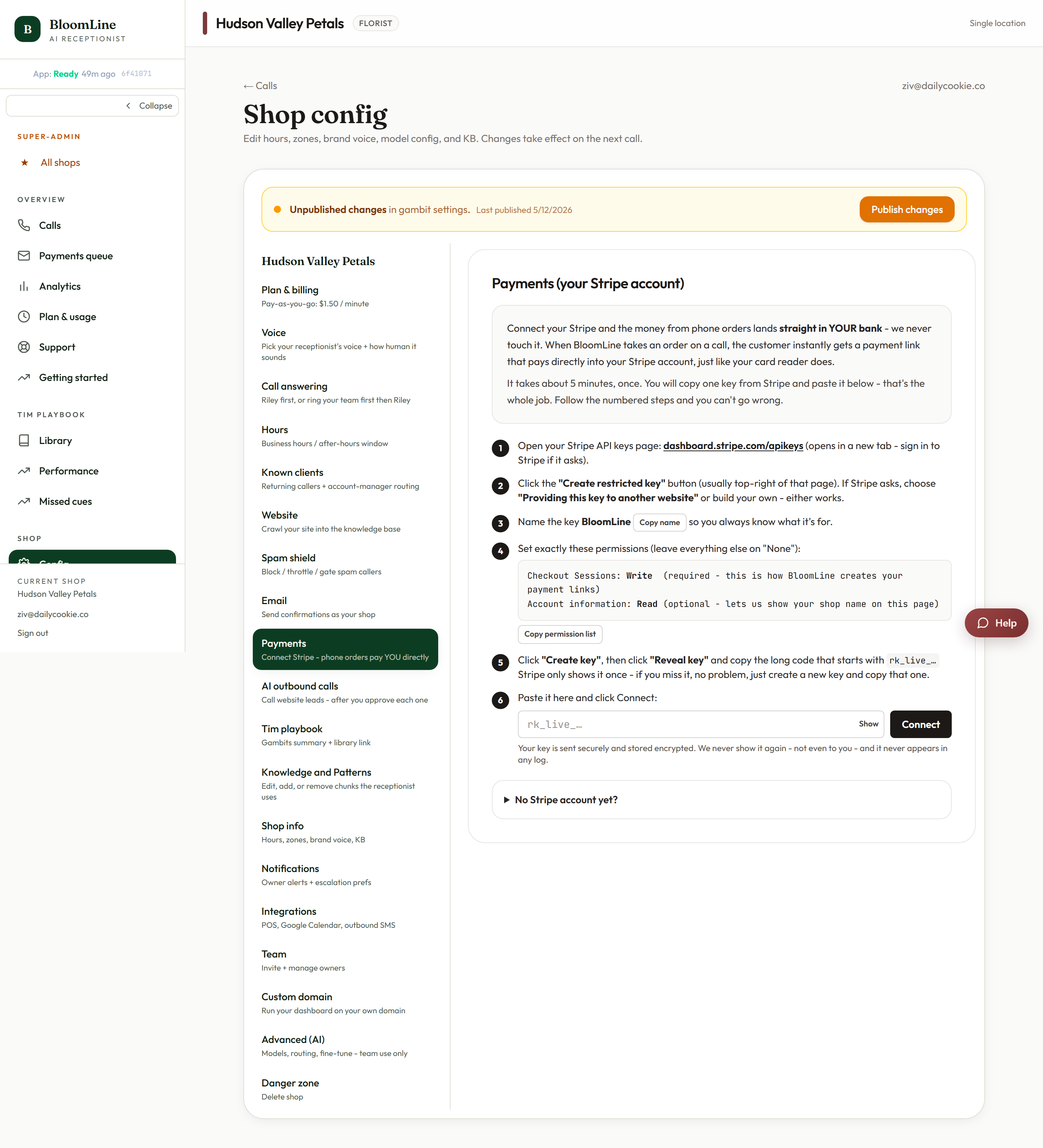
- In your BloomLine dashboard, open Shop > Config and pick the Payments tab (or go straight to the Payments tab).
- Paste your restricted key (the one starting with
rk_live_) into the Stripe restricted key field. - Click the connect button to save it.
- If a Publish changes bar appears above the tabs, click Publish changes. Staged settings go live on the next call after publishing.
Or connect it inside the Setup Assistant
If you're still working through initial setup, the Setup Assistant at /dashboard/setup has a dedicated Payments step for connecting Stripe so Riley can send mid-call payment links. It saves the same setting as the Payments tab, so use whichever is in front of you. Each Setup Assistant step self-saves and checks off as you complete it.
One more thing: register for texting (A2P)
Payment links are delivered by text message, and US carriers require business texting to be registered (this is called A2P). The Setup Assistant has an SMS legal (A2P) step that asks for your legal business name, EIN, and registered business address. Completing it keeps your payment-link texts deliverable, so don't skip it.
Which Stripe setting is which?
- Payments tab (this article): your shop's own Stripe, where customer payments land.
- Plan & billing tab: the card on file that pays for BloomLine itself. Connecting one does not set up the other.
Still stuck? Submit a ticket from this help center and we'll take it from there.
Was this article helpful?
That’s Great!
Thank you for your feedback
Sorry! We couldn't be helpful
Thank you for your feedback
Feedback sent
We appreciate your effort and will try to fix the article