Connect Google Calendar and wedding consult bookings land on the calendar your shop actually checks - no separate booking inbox to remember, no double-booked Saturday mornings.
Connect it in your dashboard
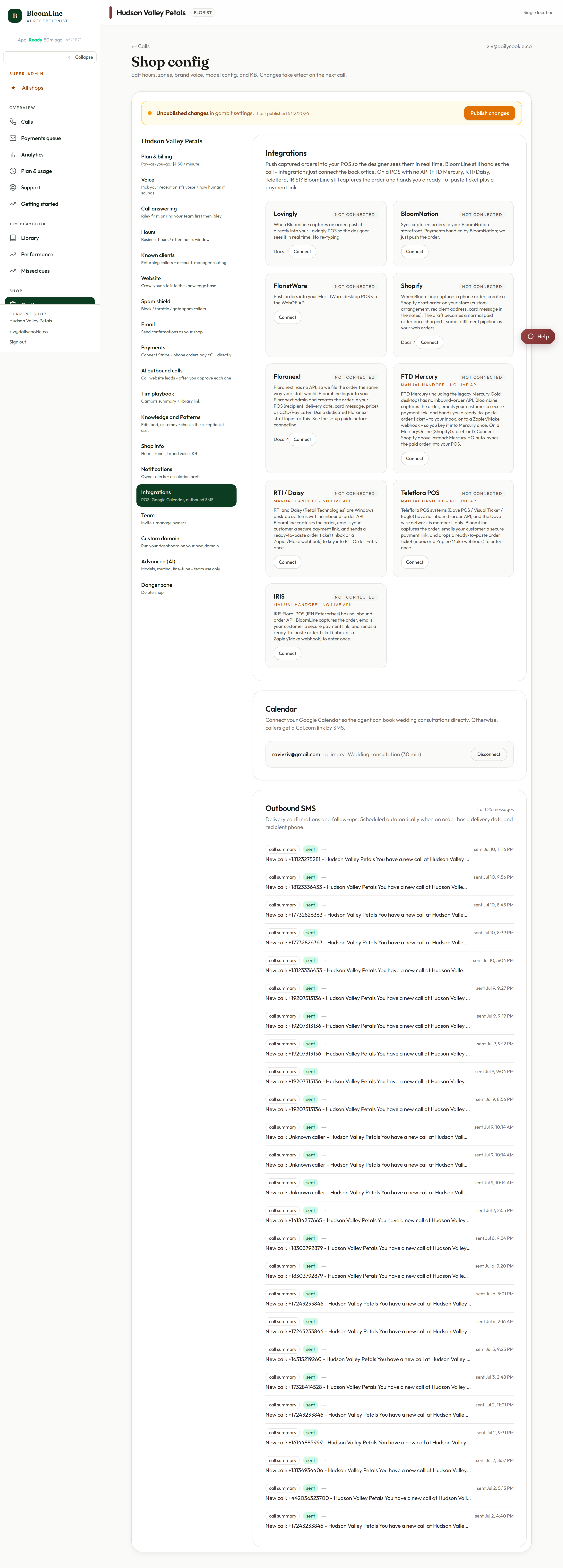
- Open Shop config > Integrations.
- Scroll to the Google Calendar panel.
- Click Connect Google Calendar and approve access with the Google account whose calendar you want consults on.
- Set the panel's options (below) and click Publish changes when the bar appears.
The settings, one by one
- Calendar ID: which calendar the consult events are created on. Leave it pointed at your main calendar, or use a dedicated "Consults" calendar if your shop keeps one.
- Default event summary: the title each consult event gets, so consults are recognizable at a glance in a busy week view.
- Default event duration: how long each consult is blocked for, so back-to-back bookings leave the right amount of room.
- Disconnect: available in the same panel any time you want to unlink the calendar.
Add your consult booking URL
There is one related field outside the Integrations tab: the consult booking URL in Shop config > Shop info. If your shop uses a booking page for consults, put its link there so it is on file alongside the calendar connection.
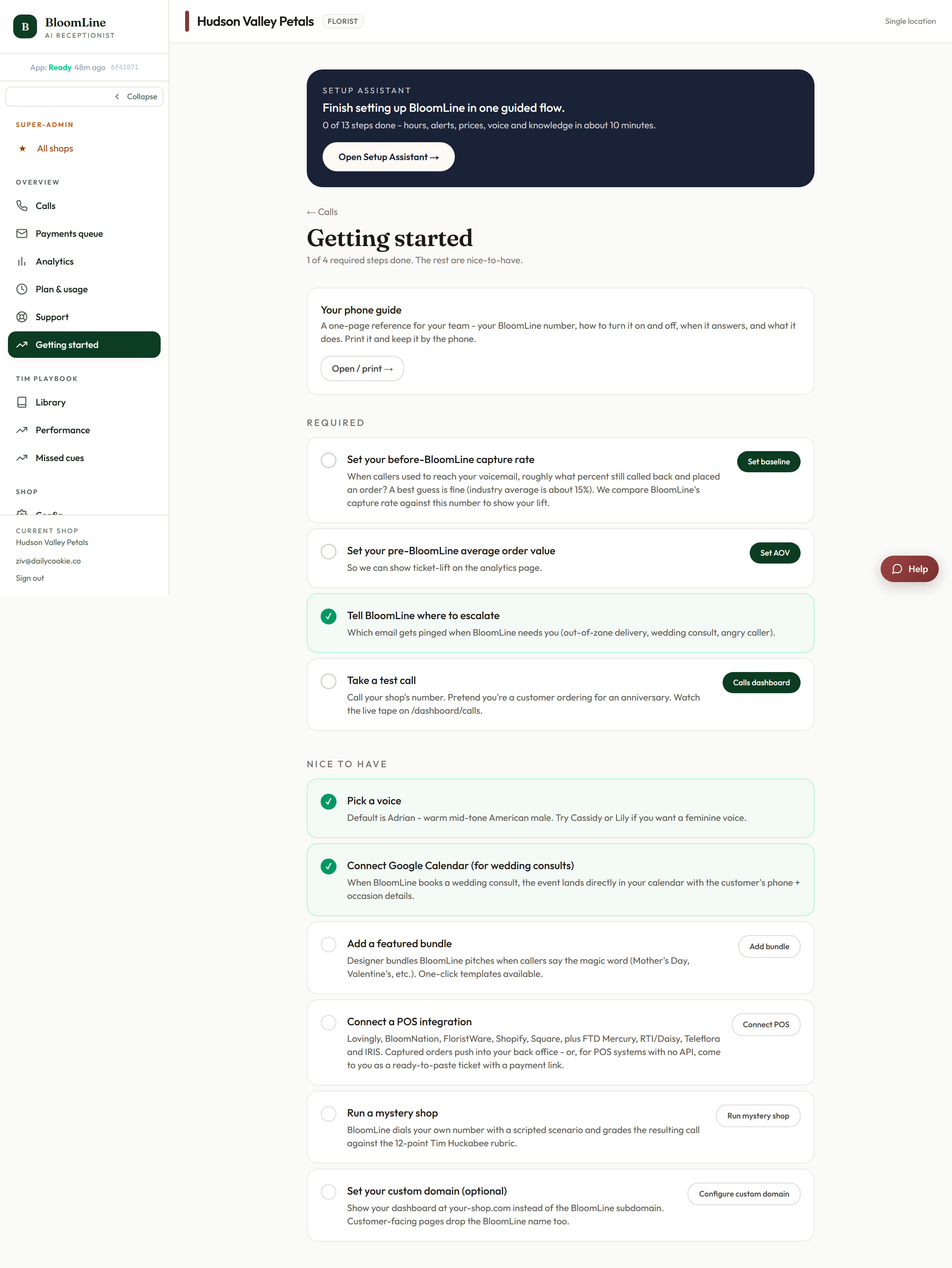
It is on your getting started checklist
The Getting started checklist includes a Connect Google Calendar for wedding consults item that deep-links you straight to this panel. Wedding consults are some of the highest-value conversations your phone line carries, so this is worth checking off early.
Checking it works
After connecting, watch for the next consult booking to appear on the calendar you chose, with your default summary and duration. If events are not appearing, double-check the calendar ID and that you connected the right Google account, then open a ticket if it still is not landing.
Still stuck? Submit a ticket from this help center and we'll take it from there.
Was this article helpful?
That’s Great!
Thank you for your feedback
Sorry! We couldn't be helpful
Thank you for your feedback
Feedback sent
We appreciate your effort and will try to fix the article