When Riley takes an order over the phone, that order can land in the same system your web orders already use - no retyping, no sticky notes by the register. The Integrations tab in your dashboard has a connector block for every system BloomLine supports, so a phone order shows up looking just like a web order.
Where to find your integrations
- Sign in to your dashboard at km-florist-receptionist.vercel.app/dashboard.
- Open Shop config and click the Integrations tab (or go straight to /dashboard/shop?tab=integrations).
- Scroll to the connector block for your system and fill in its fields.
- When the Publish changes bar appears at the top, click it to push your new settings live.
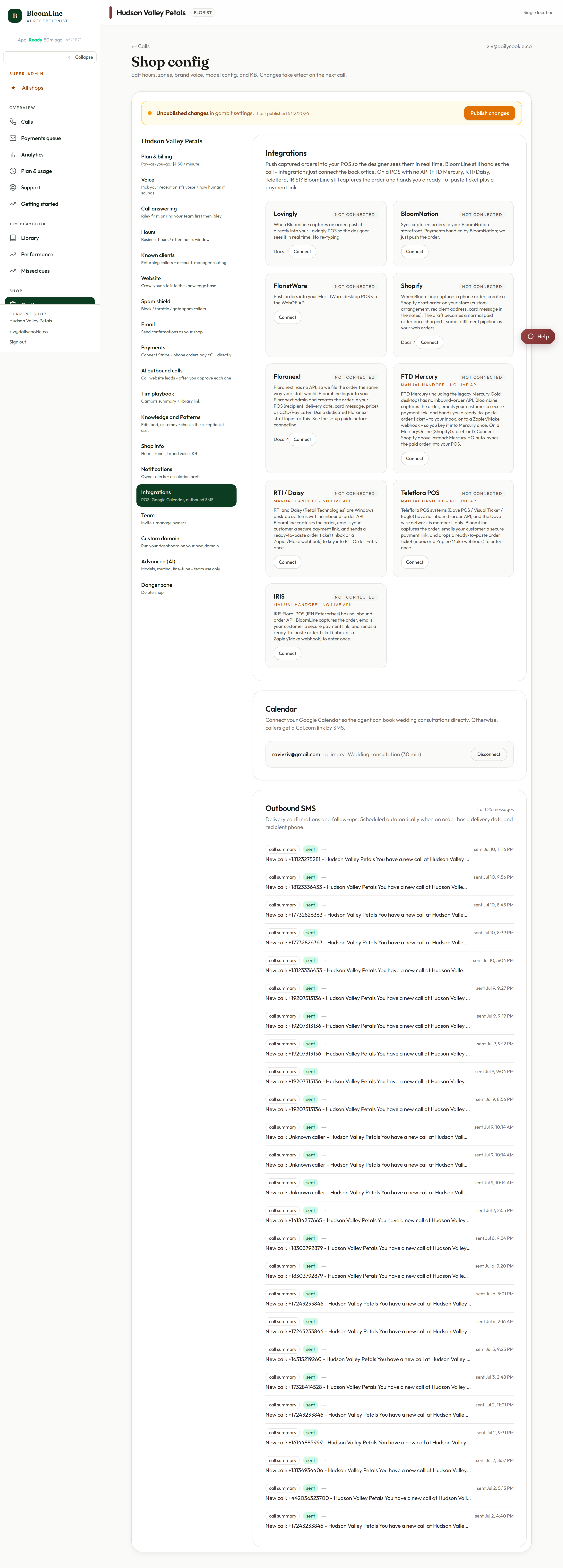
Which systems can I connect?
- Shopify: store domain (xxx.myshopify.com) plus an Admin API access token.
- Floranext: store slug, an admin or staff email, and password.
- Lovingly: your Lovingly shop ID.
- BloomNation: store slug plus an API key.
- FloristWare: account ID plus a WebOE API token.
- FTD Mercury: connector for FTD shops running Mercury.
- Teleflora POS: pick which Teleflora system you run and set an employee ID that phone orders are attributed to.
- RTI / Daisy: connector for RTI and Daisy systems.
- IRIS: connector for IRIS.
The same tab also holds the Google Calendar connection for wedding consults, an optional Zapier / Make webhook URL, and the Outbound SMS panel. Each of those has its own article in this folder.
What happens after you connect
Once a connector is live, phone orders Riley takes push straight into your system as web-style orders. Your designers see them in the same queue they already work from, and there is nothing to transcribe from a voicemail or a call summary.
It is on your getting started checklist
If you are still setting up, the Getting started checklist includes a Connect a POS integration item that deep-links you to this tab. Checking it off means every order from every channel lands in one place from day one.
Not sure which block is yours?
Each connector has a matching partner page that explains how the integration behaves for that system. If your POS is not listed, you can still route orders out with the Zapier / Make webhook, or open a ticket and tell us what you run.
Still stuck? Submit a ticket from this help center and we'll take it from there.
Was this article helpful?
That’s Great!
Thank you for your feedback
Sorry! We couldn't be helpful
Thank you for your feedback
Feedback sent
We appreciate your effort and will try to fix the article
