Connect Floranext and the orders Riley takes on the phone push into your Floranext system, so your team keeps working from the queue they already know. This article covers what the integration can and cannot do, and exactly what credentials to send.
Start with the connect page
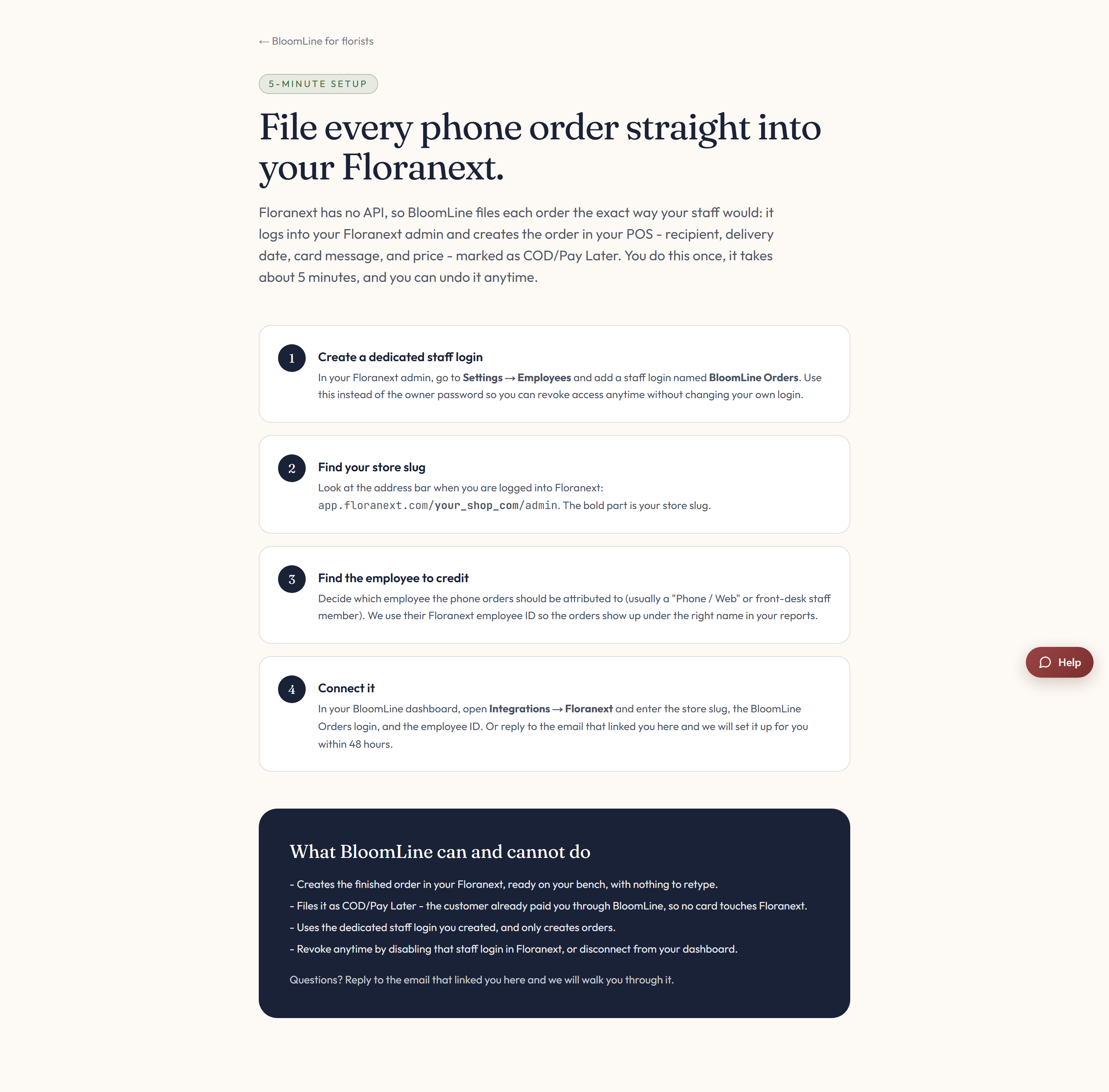
The Floranext connect page lays out two things worth reading before you send anything:
- The capability and limitation list - a plain statement of what BloomLine can do with Floranext and where the edges are, so there are no surprises after you connect.
- The credential instruction blocks - what to gather and how to get it to us.
What to send us
BloomLine needs three pieces of information to push orders into Floranext:
- Your store slug - the identifier for your Floranext store.
- An admin or staff email - the account BloomLine will use.
- That account's password.
A tip on the account: many shops prefer to create a dedicated staff login for BloomLine rather than sharing the owner account, so it is easy to see which orders came from phone calls and easy to rotate later.
Enter it in the dashboard
- Open Shop config > Integrations.
- Find the Floranext connector block.
- Fill in the store slug, email, and password fields.
- Click Publish changes to make the connection live.
You can also send the credentials to the BloomLine team as described on the connect page, and we will complete the setup for you.
What happens next
Once connected, phone orders flow into Floranext as web-style orders. Your designers see them live in the same place as every other order, and nothing needs to be copied over from call notes.
Still stuck? Submit a ticket from this help center and we'll take it from there.
Was this article helpful?
That’s Great!
Thank you for your feedback
Sorry! We couldn't be helpful
Thank you for your feedback
Feedback sent
We appreciate your effort and will try to fix the article