Connect Lovingly and a phone order becomes a paid, trackable Lovingly order without anyone touching a keyboard: the caller pays by a text-message link, and the order pushes into Lovingly where your team sees it live.
How the integration works
The Lovingly partner page walks through it in three steps:
- The caller dials your shop and Riley answers, takes the occasion, budget, and delivery details.
- Riley texts the caller a payment link by SMS so they can pay on their own phone while still on the call or right after.
- The order pushes into Lovingly, where it shows up for your team like any other order.
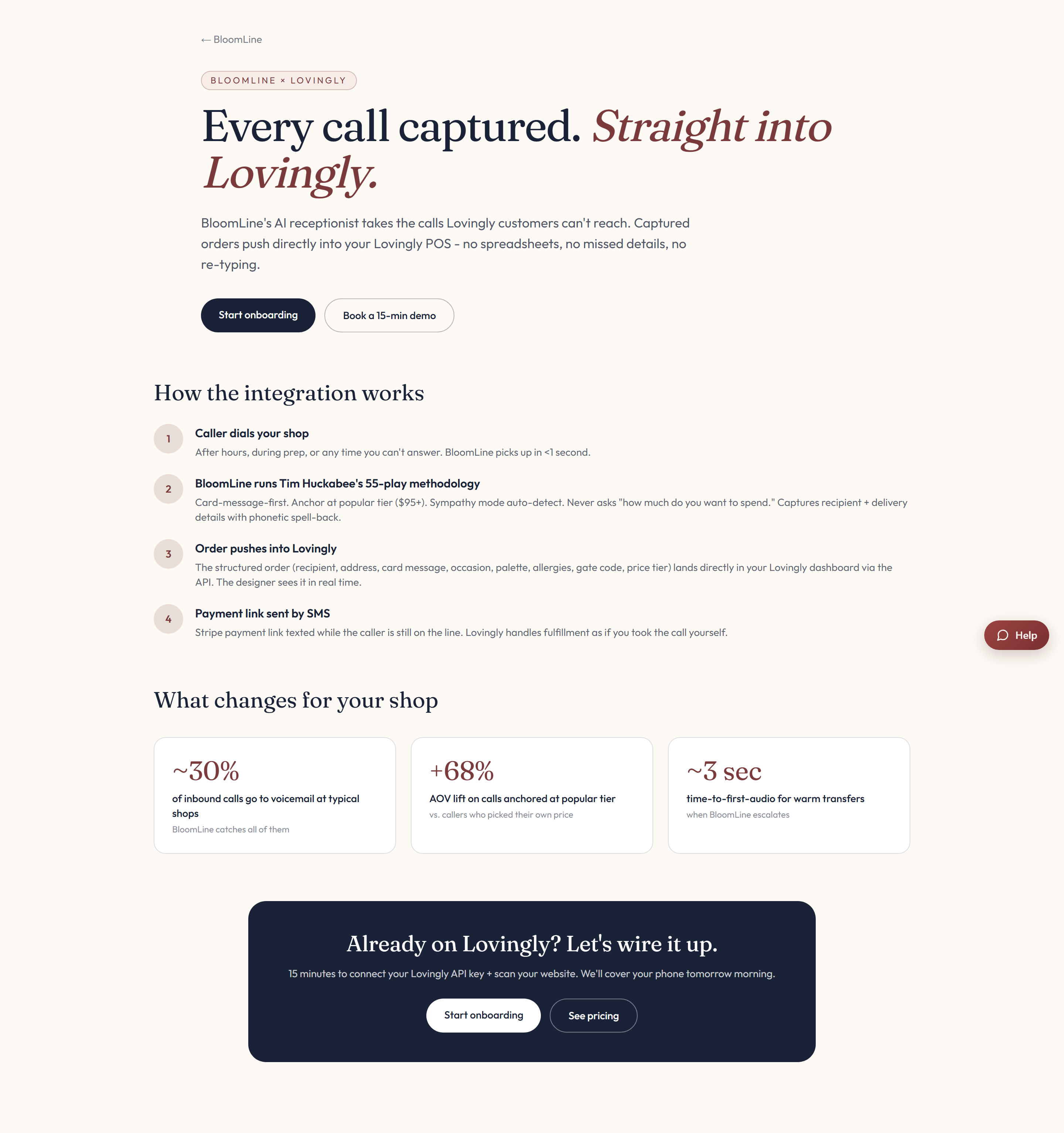
The partner page also has a "What changes for your shop" section that spells out the day-to-day difference once the connection is on.
Connect it in your dashboard
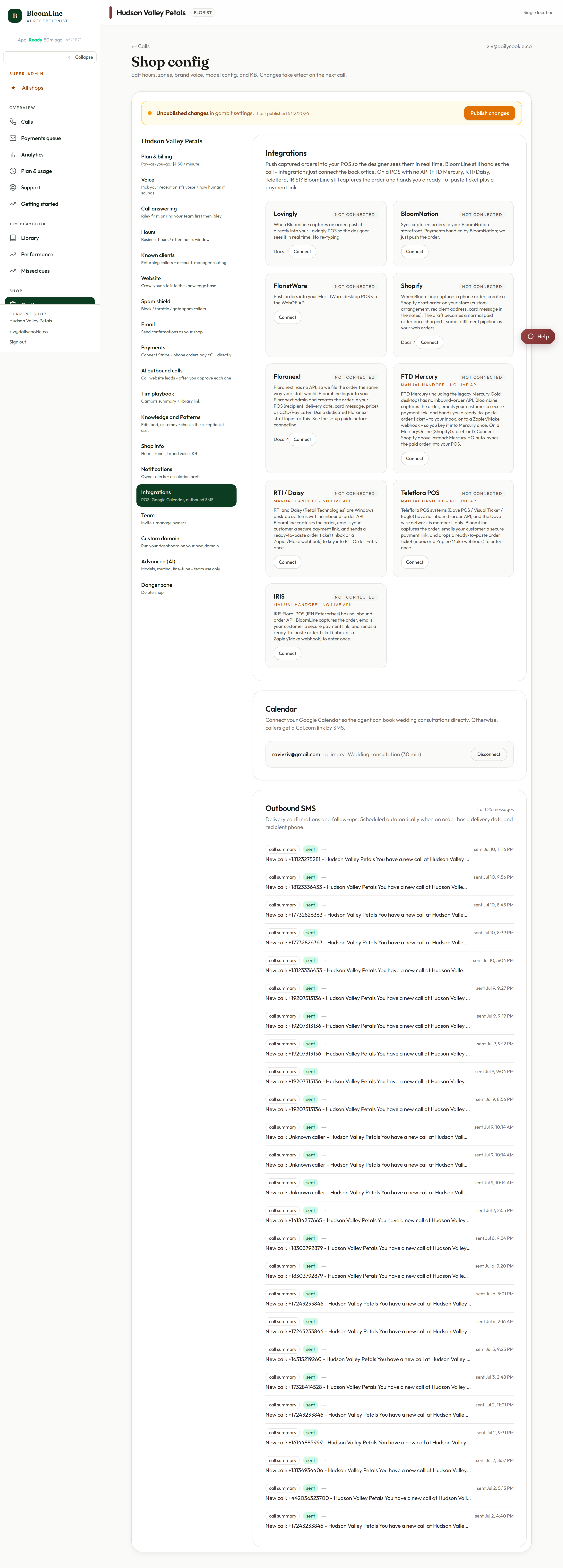
The Lovingly connector needs just one thing: your Lovingly shop ID.
- Open Shop config > Integrations.
- Find the Lovingly connector block.
- Enter your shop ID in the field.
- Click Publish changes when the bar appears.
What changes for your shop
- Phone orders stop living on notepads - they land in Lovingly automatically.
- Payment happens by SMS link during or right after the call, so there is no card number read out loud over the phone.
- Your designers see the order live, with the details Riley collected, in the system they already use.
If you are not sure where to find your Lovingly shop ID, open a ticket and we will point you to it or set the connection up with you.
Still stuck? Submit a ticket from this help center and we'll take it from there.
Was this article helpful?
That’s Great!
Thank you for your feedback
Sorry! We couldn't be helpful
Thank you for your feedback
Feedback sent
We appreciate your effort and will try to fix the article