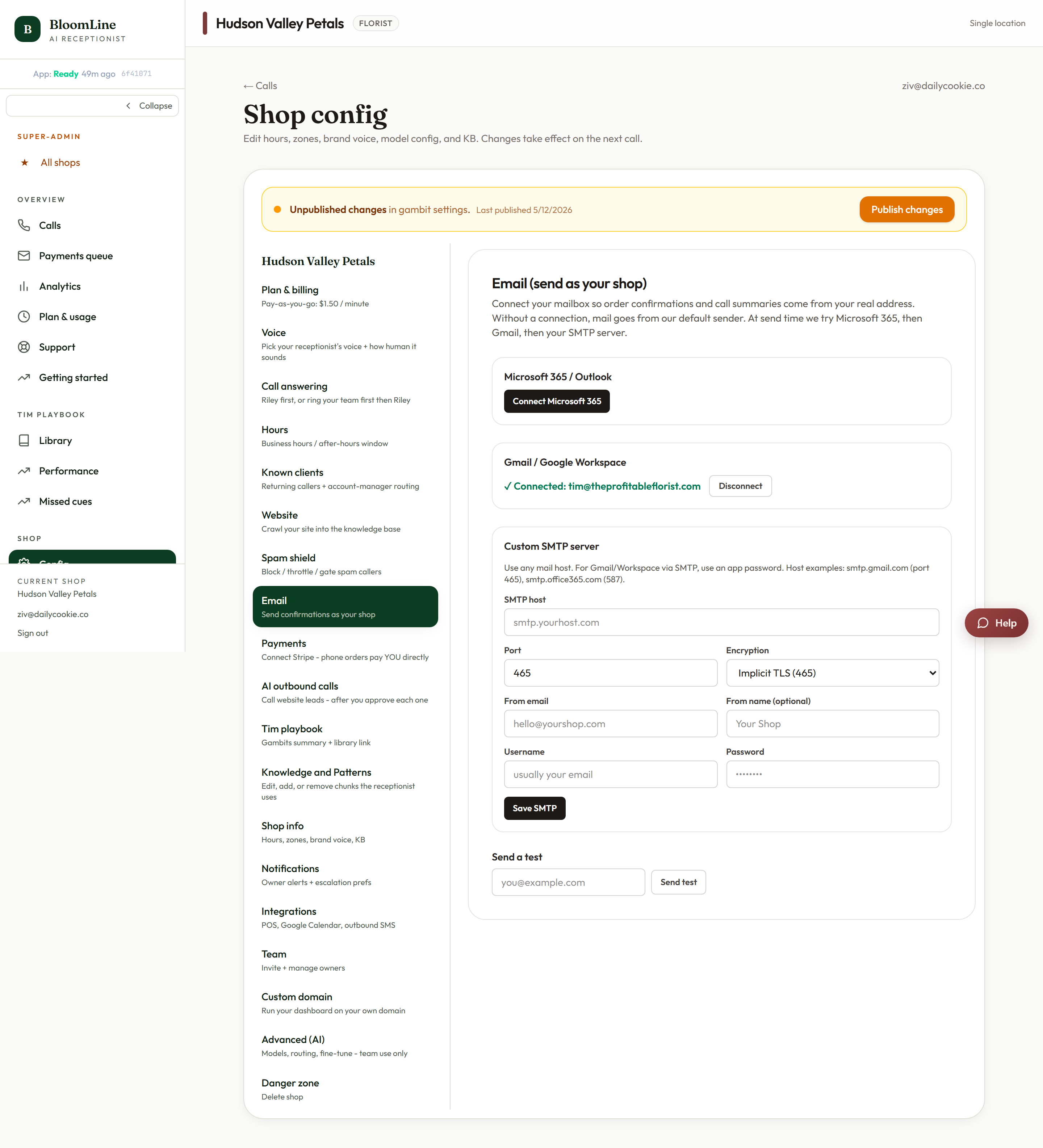
Order confirmations feel more trustworthy when they come from you - orders@yourshop.com instead of a generic platform address. The Email tab lets you connect your own mailbox over SMTP so every confirmation sends as your shop. Set it up at https://km-florist-receptionist.vercel.app/dashboard/shop?tab=email.
What you'll need
SMTP settings from your email provider - most providers publish them on a help page titled something like "SMTP settings for sending mail". You'll need the host name, port, and your login credentials. Some providers require an app-specific password rather than your normal one.
Connect your mailbox
- Open https://km-florist-receptionist.vercel.app/dashboard/shop?tab=email.
- Enter the SMTP host (for example, your provider's smtp server address).
- Set the port and matching encryption: STARTTLS on port 587 or Implicit TLS on port 465. Use whichever pair your provider documents - they go together.
- Enter your username and password for the mailbox.
- Set the from email (the address customers will see) and optionally a from name (like "Rose & Thorn Florist").
- Click Save SMTP.
Always send a test
Click Send test and check your own inbox. This one click catches nearly every setup problem: wrong password, wrong port/encryption pair, a provider that blocks SMTP by default. Don't skip it - a confirmation email that silently fails is worse than one from a generic address.
If the test doesn't arrive: check your spam folder first, then re-verify the port and encryption match, and confirm your provider allows SMTP sending for this account (some require you to enable it or create an app password).
Disconnecting
The Disconnect / Remove button clears the SMTP identity. Use it if you change email providers or rotate credentials, then set up the new details and re-test.
Part of the Setup Assistant too
The Email identity step in the Setup Assistant (https://km-florist-receptionist.vercel.app/dashboard/setup) walks through this same setup with the framing "send confirmations as your shop" - if you completed it there, this tab is where you maintain it later.
Still stuck? Submit a ticket from this help center and we'll take it from there.
Was this article helpful?
That’s Great!
Thank you for your feedback
Sorry! We couldn't be helpful
Thank you for your feedback
Feedback sent
We appreciate your effort and will try to fix the article