You don't have to share one login with the whole shop. From the Team tab you can invite each teammate by email, give them the right level of access, and remove them the moment they leave. Anyone on your team can then check calls, recordings, and settings with their own account.
Where to manage your team
Open your dashboard and go to Shop config, then the Team tab: https://km-florist-receptionist.vercel.app/dashboard/shop?tab=team. This is where invites are sent, pending invites are revoked, and existing members are removed.
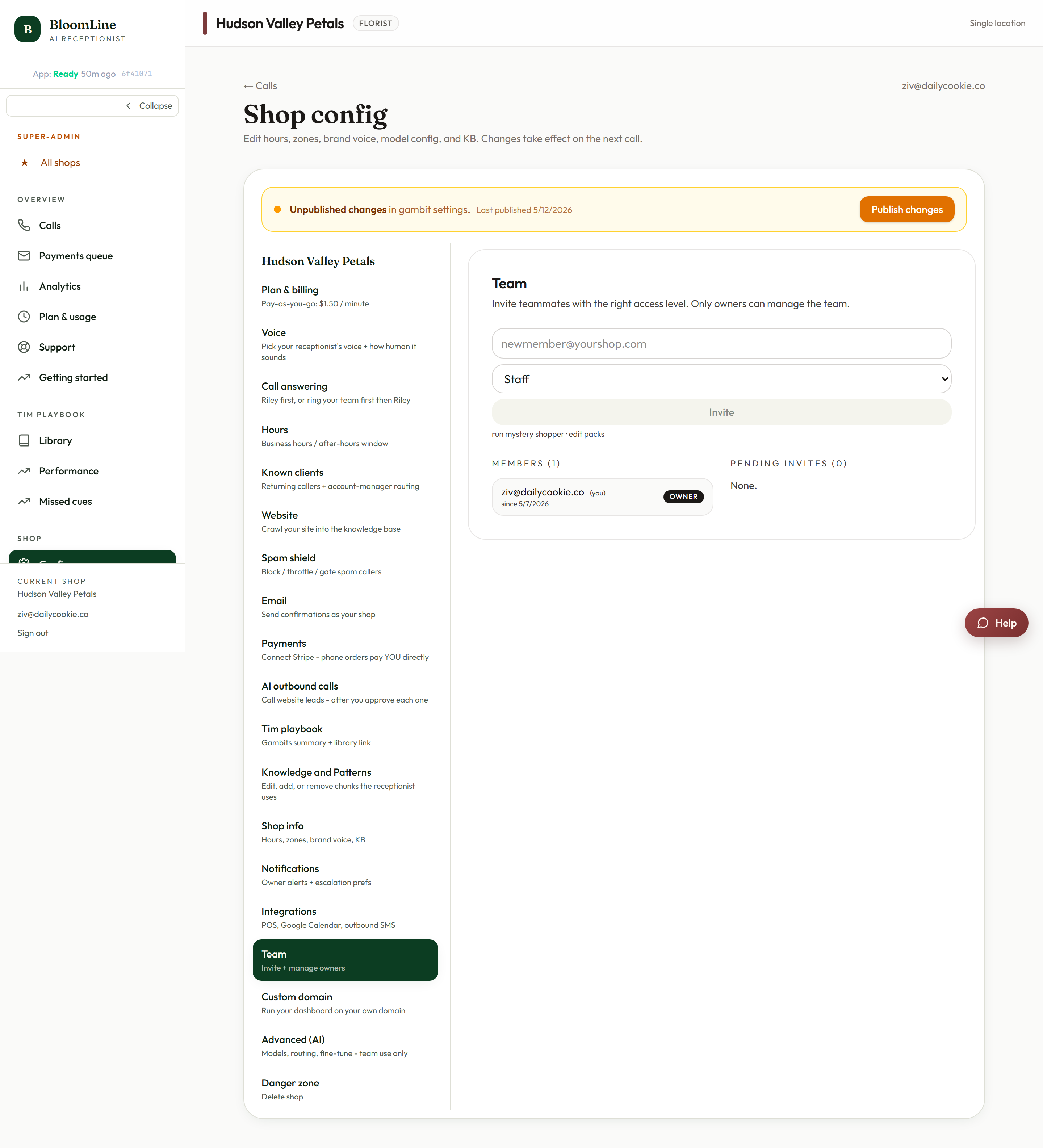
The four roles
When you invite someone, you pick one of four roles:
- Owner - the highest level of access. Reserve this for the people who actually own or run the shop.
- Manager - a step below Owner, for teammates who help you run day-to-day operations.
- Staff - for shop floor staff. Staff accounts are provisioned as viewers, so in practice a Staff invite results in read-only access.
- Viewer - read-only. Viewers can look but not change settings. This is the safest choice for anyone who only needs to see calls and activity.
A good rule of thumb: pick the lowest role that covers what the person needs. You can always remove someone and re-invite them at a different role later.
Invite a teammate
- Go to the Team tab at https://km-florist-receptionist.vercel.app/dashboard/shop?tab=team.
- Type the teammate's email address in the invite field.
- Choose a role: Owner, Manager, Staff, or Viewer.
- Click Invite. BloomLine emails them an invitation link.
What your teammate sees
Your teammate receives an email with an invite link. Clicking it takes them to the accept-invite page, where the invitation token in the link is verified. Once they accept, they gain access to your shop's dashboard at the role you chose.
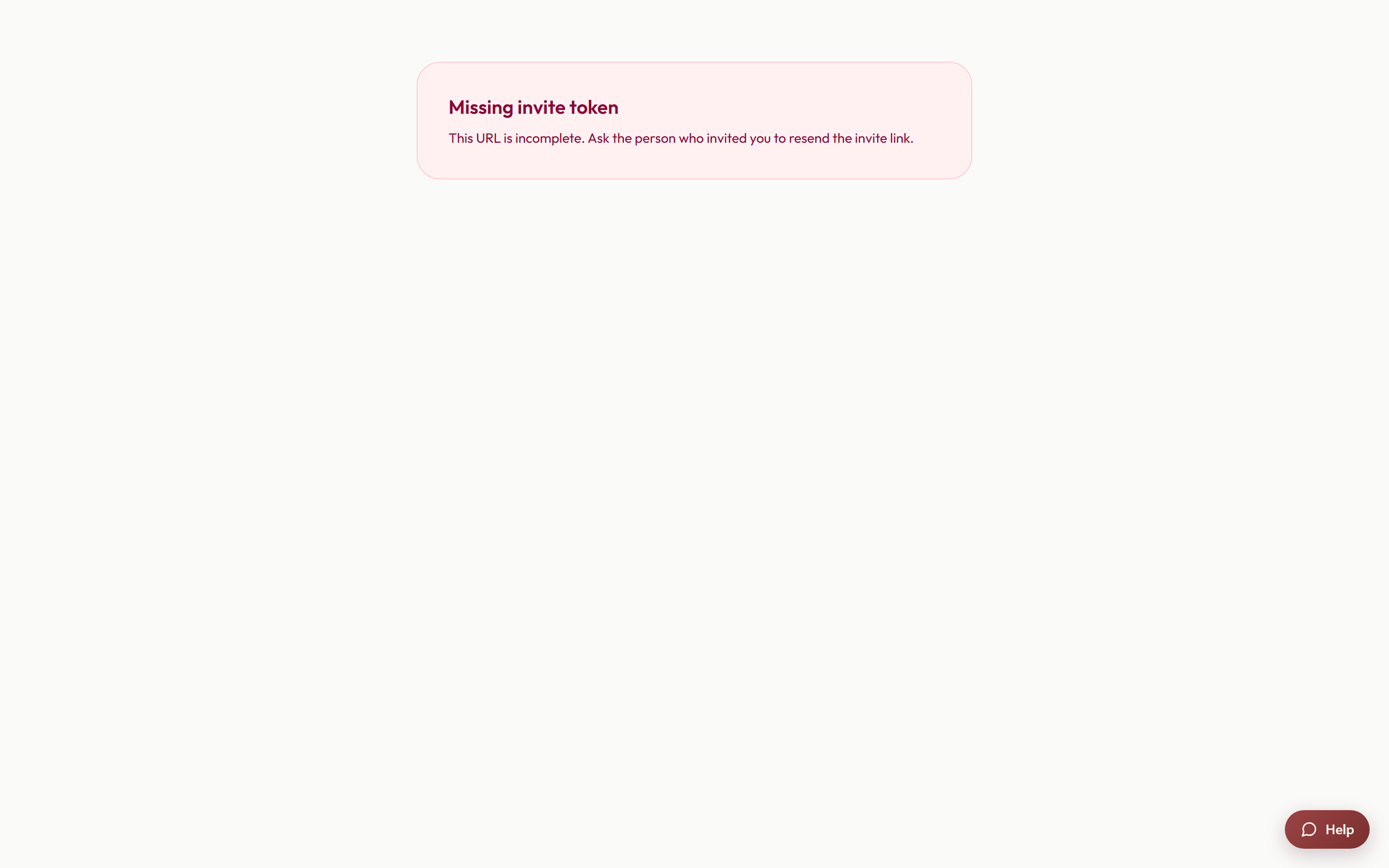
Three messages can appear here instead of a successful acceptance:
- Invite expired - the invitation sat too long before being used. Revoke the pending invite from the Team tab and send a fresh one.
- Invite not found - the invite was already used, or it was revoked from the Team tab. Send a new invite if the teammate still needs access.
- Missing token - the link was opened without its token, usually because it got truncated when copied or forwarded. Ask your teammate to click the link directly from the original email, or send a new invite.
Remove a member or revoke a pending invite
Both actions live on the same Team tab:
- Remove member - takes away an existing teammate's access to your shop. Use this the day someone leaves.
- Revoke pending invite - cancels an invitation that hasn't been accepted yet. The emailed link stops working, and the recipient will see "Invite not found" if they try it.
Tips for a clean team list
- Invite each person with their own email address rather than a shared shop mailbox, so you can remove one person without locking out everyone.
- Default to Viewer for seasonal or part-time help. Read-only access still shows them every call and recording.
- Review the member list before busy holidays and remove anyone who no longer works with you.
Still stuck? Submit a ticket from this help center and we'll take it from there.
Was this article helpful?
That’s Great!
Thank you for your feedback
Sorry! We couldn't be helpful
Thank you for your feedback
Feedback sent
We appreciate your effort and will try to fix the article