The shop editor is where BloomLine keeps your shop's core identity: the name Riley uses, the tone it speaks in, where consults get booked, and the baseline numbers your results are measured against. It lives at the top of the Shop info tab: https://km-florist-receptionist.vercel.app/dashboard/shop?tab=info.
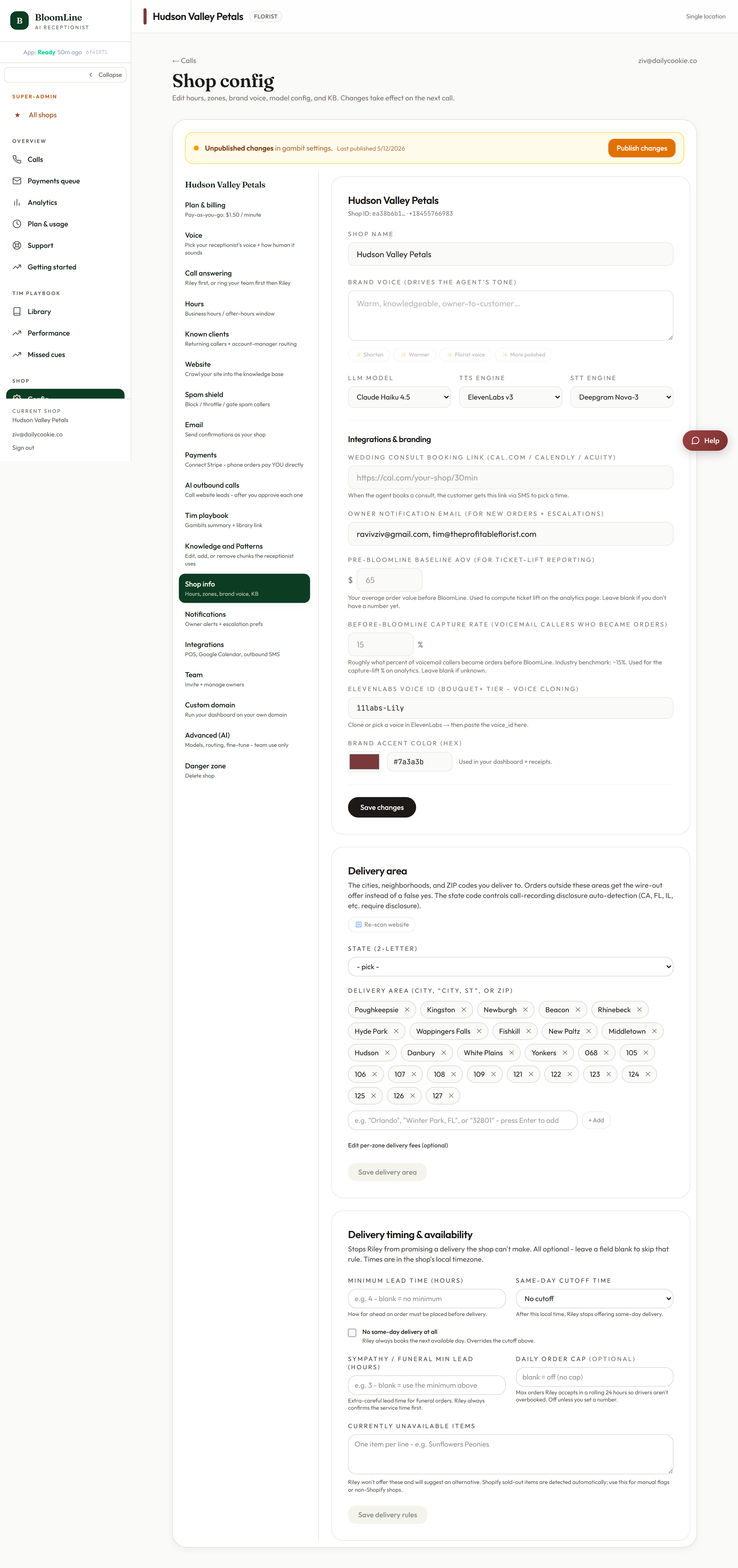
The fields and what they do
- Name - your shop's name as Riley says it on calls.
- Brand voice description - a short description of how your shop talks: warm and neighborly, upscale and polished, playful. Riley uses this to match your tone.
- Consult booking URL - the link used when a caller books a wedding or event consult. If you connect Google Calendar (Integrations tab), consults can land straight on your calendar.
- Owner notification email - where owner-level notices go. Day-to-day call alert recipients are managed separately in the Notifications tab.
- ElevenLabs voice ID - an advanced field for a specific voice identity. Most shops should pick a voice from the Voice tab instead and leave this alone.
- Brand color - your shop's color, used to brand your dashboard experience.
- Baseline AOV - your average order value before BloomLine.
- Baseline capture rate - the share of calls that became orders before BloomLine.
Click Save changes when you are done.
Why the baselines matter
The two baseline fields are how you will know whether BloomLine is paying for itself. Enter honest before-BloomLine numbers - your old average order value and how many calls used to turn into orders - and your reporting has a real "before" to compare against. These are important enough that the Getting started checklist (https://km-florist-receptionist.vercel.app/dashboard/getting-started) calls them out as their own items: Set baseline and Set AOV.
Not sure of your exact numbers? A close estimate beats an empty field. You can refine them later - just keep them describing the pre-BloomLine era, not current performance.
Delivery settings live on the same tab
Scroll down on the same page for delivery zones, fees, cutoffs, and the unavailable flowers list - covered in "Set delivery timing rules, delivery zones, and sold-out items".
Still stuck? Submit a ticket from this help center and we'll take it from there.
Was this article helpful?
That’s Great!
Thank you for your feedback
Sorry! We couldn't be helpful
Thank you for your feedback
Feedback sent
We appreciate your effort and will try to fix the article