From the moment you sign up, BloomLine is working toward one goal: your own AI receptionist, Riley, answering your shop's phone line and capturing every order. Here is the journey from a fresh account to a fully live receptionist, and where to find your progress along the way.
The journey at a glance
- Create your shop with the website scan. On the onboarding page you enter your shop's website address and click Scan my shop. BloomLine reads your site and builds a first draft of your shop profile: name, brand voice, delivery zones, products, and specialties. You review and fix anything the scan got wrong before creating the shop.
- Work through the Setup Assistant. The done screen of the scan drops you into the Setup Assistant, a 13-step guided wizard grouped into three tiers: Go live, Sound great & get paid, and Fine-tune. Every step saves itself as you go.
- Forward your phone line and take a test call. Once your line forwards to your BloomLine number, Riley answers real calls. Place a test call to your own cell first so you hear exactly what your customers will hear.
Your shop finds you automatically
Your shop is linked to the email address you sign in with. If you created your shop before signing in, it is auto-linked to your sign-in email on your next login - no manual pairing needed. Just sign in with the same email you used during onboarding and your shop dashboard is waiting.
Track your progress on the Getting started checklist
The Getting started page in the dashboard sidebar keeps a running checklist of everything worth doing, with the Required items at the top and the nice-to-have items below. Each item deep-links straight into the setting it refers to, so you never have to hunt for the right screen.
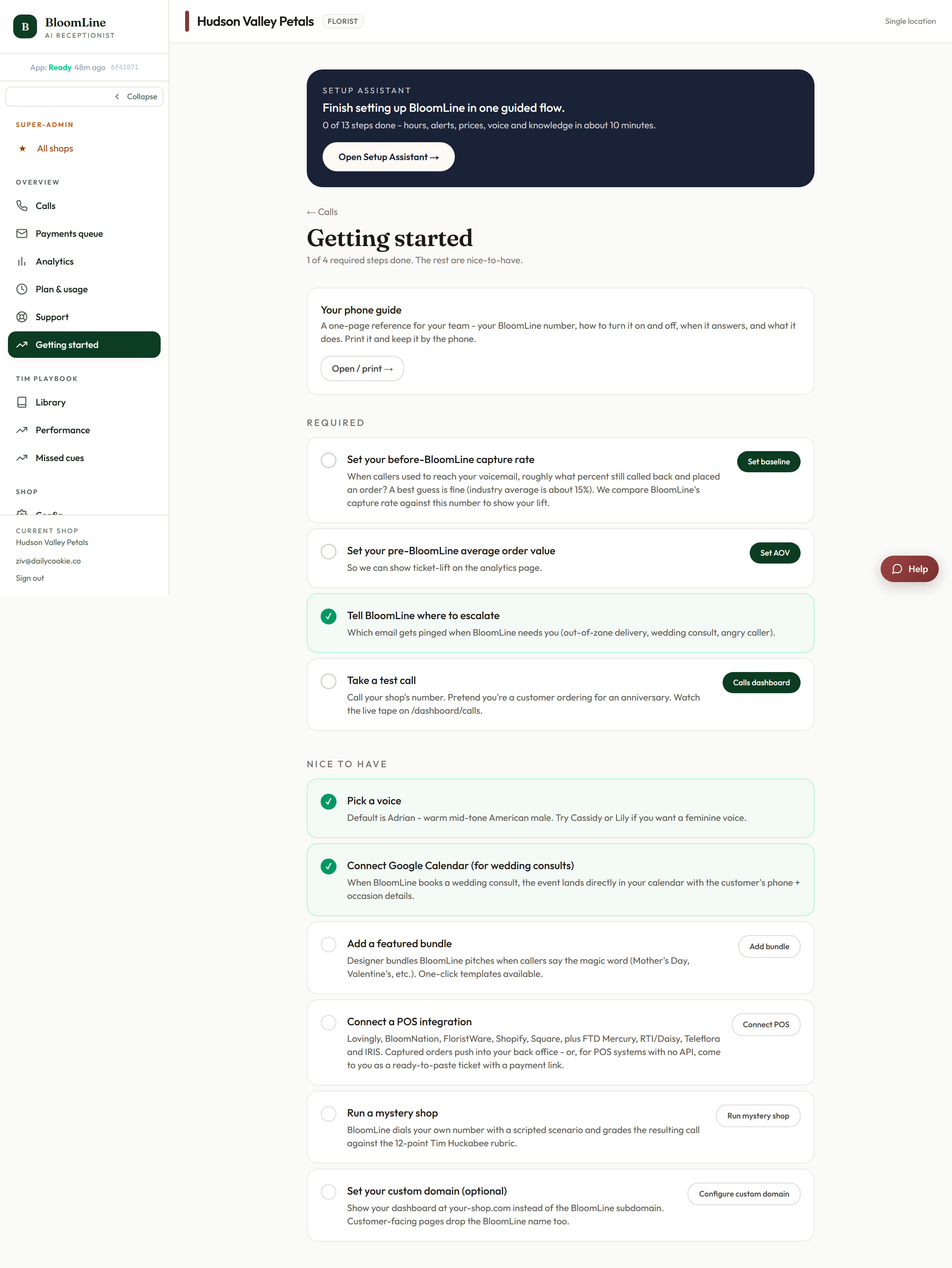
The checklist covers items like setting your baseline capture rate and average order value (so BloomLine can show you what it recovers), setting notifications, picking a voice, connecting Google Calendar for wedding consults, adding a featured bundle, connecting a POS integration, taking a test call, running a mystery shop, and optionally setting a custom domain.
What to do first
- Today: finish the website scan, open the Setup Assistant, and complete the Go live tier so real calls can start flowing.
- This week: work down the Required checklist items, then forward your line and place a test call.
- Ongoing: use the nice-to-have items (mystery shops, featured bundles, integrations) to sharpen how Riley sells.
You do not need to finish everything in one sitting. Steps and checklist items save as you complete them, so you can come back any time and pick up where you left off.
Still stuck? Submit a ticket from this help center and we'll take it from there.
Was this article helpful?
That’s Great!
Thank you for your feedback
Sorry! We couldn't be helpful
Thank you for your feedback
Feedback sent
We appreciate your effort and will try to fix the article