Riley answers calls the moment your shop's phone line forwards to your BloomLine number. Forwarding is a single dial code on your existing shop phone - no new hardware, no porting, and you can switch it off just as fast. This article walks you through the whole thing.
Step 1: Find your BloomLine number in the Phones step
Open the Setup Assistant and go to the Phones step. It shows three things:
- Your line: the shop number your customers already call.
- Forwarding setup: the BloomLine number your line should forward to.
- Answering mode: how calls are answered, such as "Riley first - BloomLine answers every call."
Keep this page open (or write the BloomLine number down) - you will dial it into a forwarding code in the next step.
Step 2: Dial your carrier's forwarding code
Every phone carrier has its own dial code to turn forwarding on and off. BloomLine keeps a carrier-by-carrier cheat sheet at Setup Assistant > Call forwarding help, listing the enable code and the disable code for each carrier.
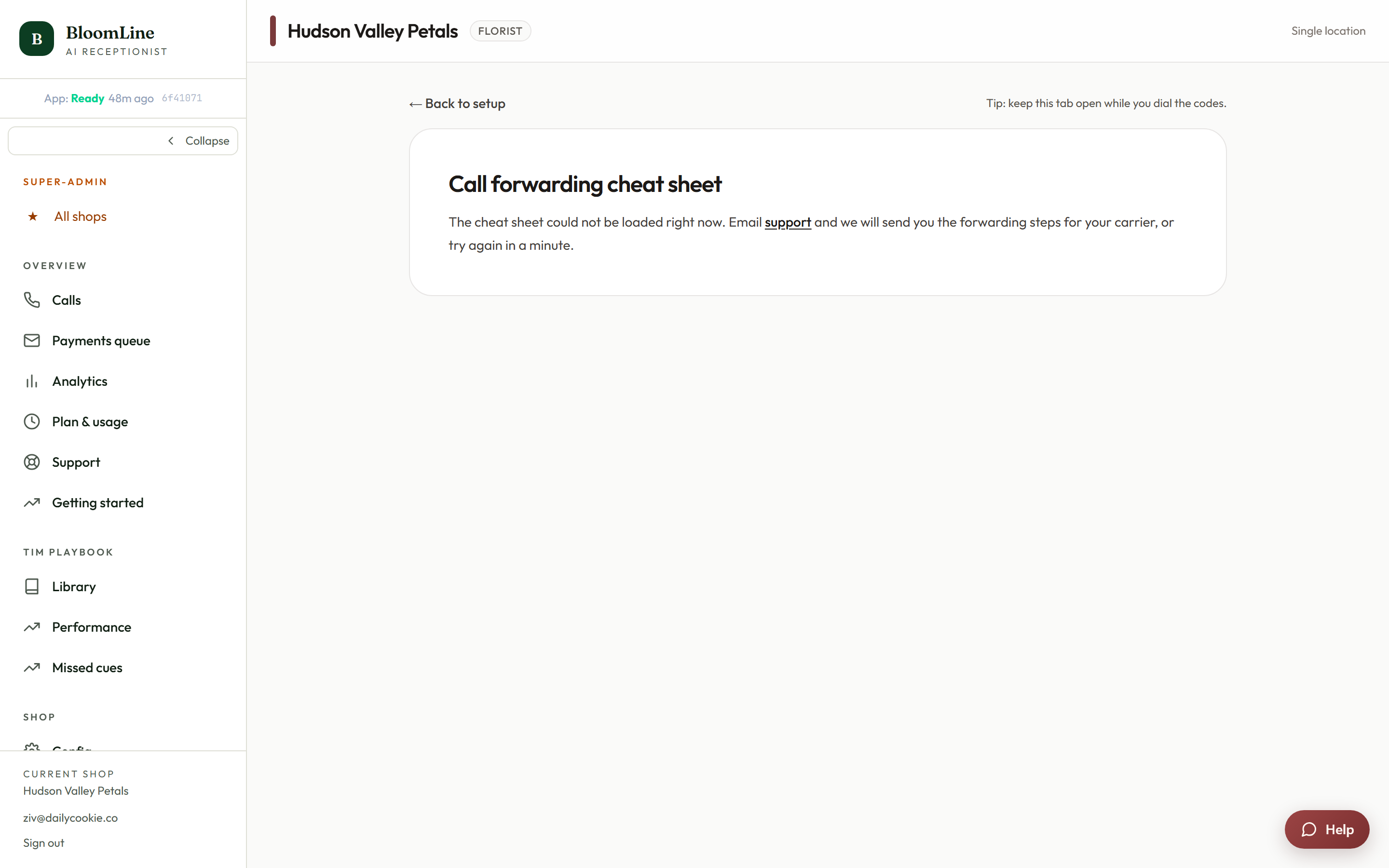
- Open the cheat sheet and find your carrier in the list.
- From the shop's own handset, dial the enable code followed by your BloomLine number, exactly as the sheet shows.
- Listen for the confirmation tone or message from your carrier.
- Call your shop number from another phone. Riley should answer with your greeting.
Turning forwarding off
Next to every enable code on the cheat sheet is the matching disable code. Dial it from the same shop handset and your line goes back to ringing in the shop instantly. This is handy if you ever want to answer everything yourself for an afternoon.
Keep the codes by the register
The printable phone guide shows your shop's BloomLine number along with the same forwarding on and off dial codes, formatted to print on one page. Print it and keep it next to the shop phone so any staff member can flip forwarding on or off without logging into the dashboard.
After you flip the switch
Once forwarding is on, every call to your shop number reaches Riley according to your answering mode. Place one test call yourself, then check the Calls page in your dashboard - you should see the call appear with its transcript and recording. That is your proof the line is live.
Still stuck? Submit a ticket from this help center and we'll take it from there.
Was this article helpful?
That’s Great!
Thank you for your feedback
Sorry! We couldn't be helpful
Thank you for your feedback
Feedback sent
We appreciate your effort and will try to fix the article