The Payments queue is your safety net for getting paid. Every mid-call payment link Riley creates shows up here, so if an automatic text ever fails, you can copy the link, send it yourself, and still close the sale. Nothing falls through the cracks just because one SMS didn't land.
Where to find it
Open Payments queue in the dashboard sidebar, or go straight to the Payments queue. Each row is one payment link that needs attention: you can send it, resend it, or track what happened to it.
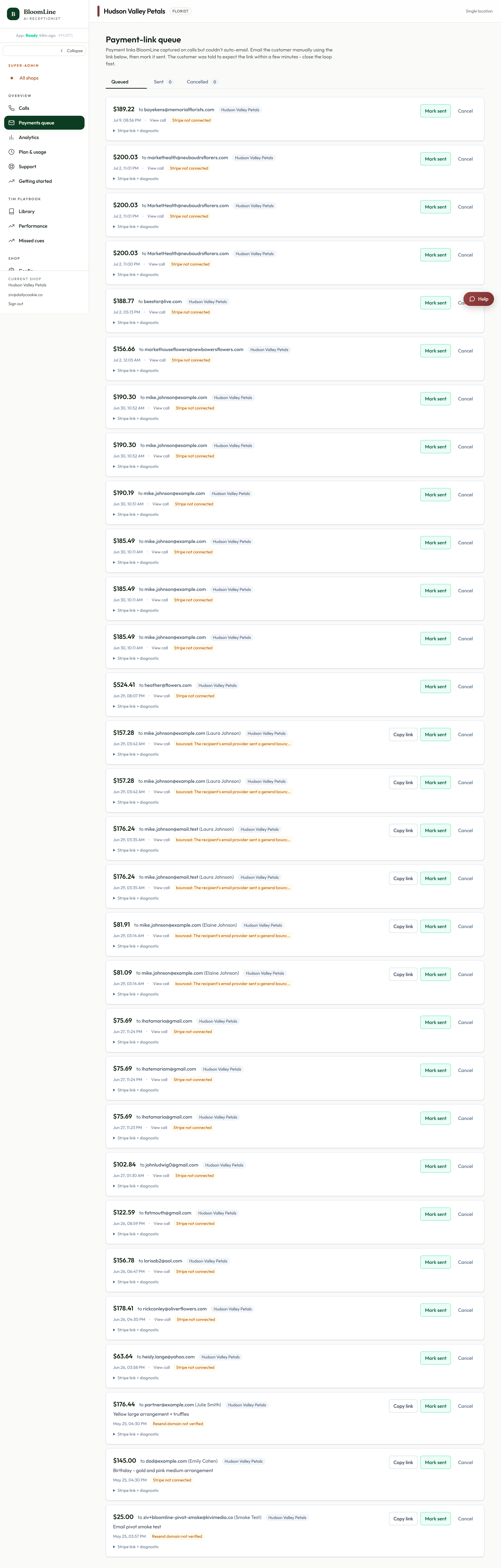
The three buttons on every row
- Copy link: copies the payment link to your clipboard. You'll see a quick "Copied!" confirmation so you know it worked. Use this whenever you want to send the link yourself, by text, email, or however you reach that customer.
- Mark sent: tells BloomLine you delivered the link yourself. Use it after you've copied a link and texted it manually, so the row stops asking for attention.
- Cancel: kills the payment link. Use this when the order changed or the customer decided not to buy, so an old link can't be paid by mistake.
When the automatic text fails
Sometimes the automatic SMS with the payment link doesn't go out. When that happens, the row shows one of three error states:
- Auth failed
- Domain not verified
- Send failed
Whatever the label, the in-the-moment fix is the same manual fallback:
- Click Copy link on the row (wait for the "Copied!" confirmation).
- Text the link to the customer from your own phone. They already gave Riley their number on the call, so they're expecting it.
- Come back to the queue and click Mark sent so the row is accounted for.
The customer still pays through the same secure link, and the money still lands in your connected Stripe account. The only difference is who pressed send.
If errors keep happening
An occasional failed send happens to everyone. If rows keep landing in an error state, two settings are worth a look:
- Your Stripe connection: open Config > Payments and confirm your Stripe restricted key is connected. See "Connect your Stripe so phone payments land in your account."
- Your A2P text registration: payment-link texts are business SMS, which carriers require to be registered. The SMS legal (A2P) step in the Setup Assistant covers it.
If both look right and links still won't send, open a support ticket from the Support page in your sidebar and include which error label you're seeing.
Still stuck? Submit a ticket from this help center and we'll take it from there.
Was this article helpful?
That’s Great!
Thank you for your feedback
Sorry! We couldn't be helpful
Thank you for your feedback
Feedback sent
We appreciate your effort and will try to fix the article