When something is off and the knowledge base has not solved it, a support ticket is the fastest route to the BloomLine team. You open, track, and reply to tickets right inside your dashboard, and the priority you pick tells us how quickly you need a response - up to "Urgent - calls broken, lost revenue" when your line is affected.
Open a new ticket
- Go to Dashboard > Support.
- Enter a subject that says what went wrong in one line, for example: "BloomLine quoted the wrong delivery fee".
- Pick a priority (see the guide below).
- Write a description with the details.
- Click Open ticket.
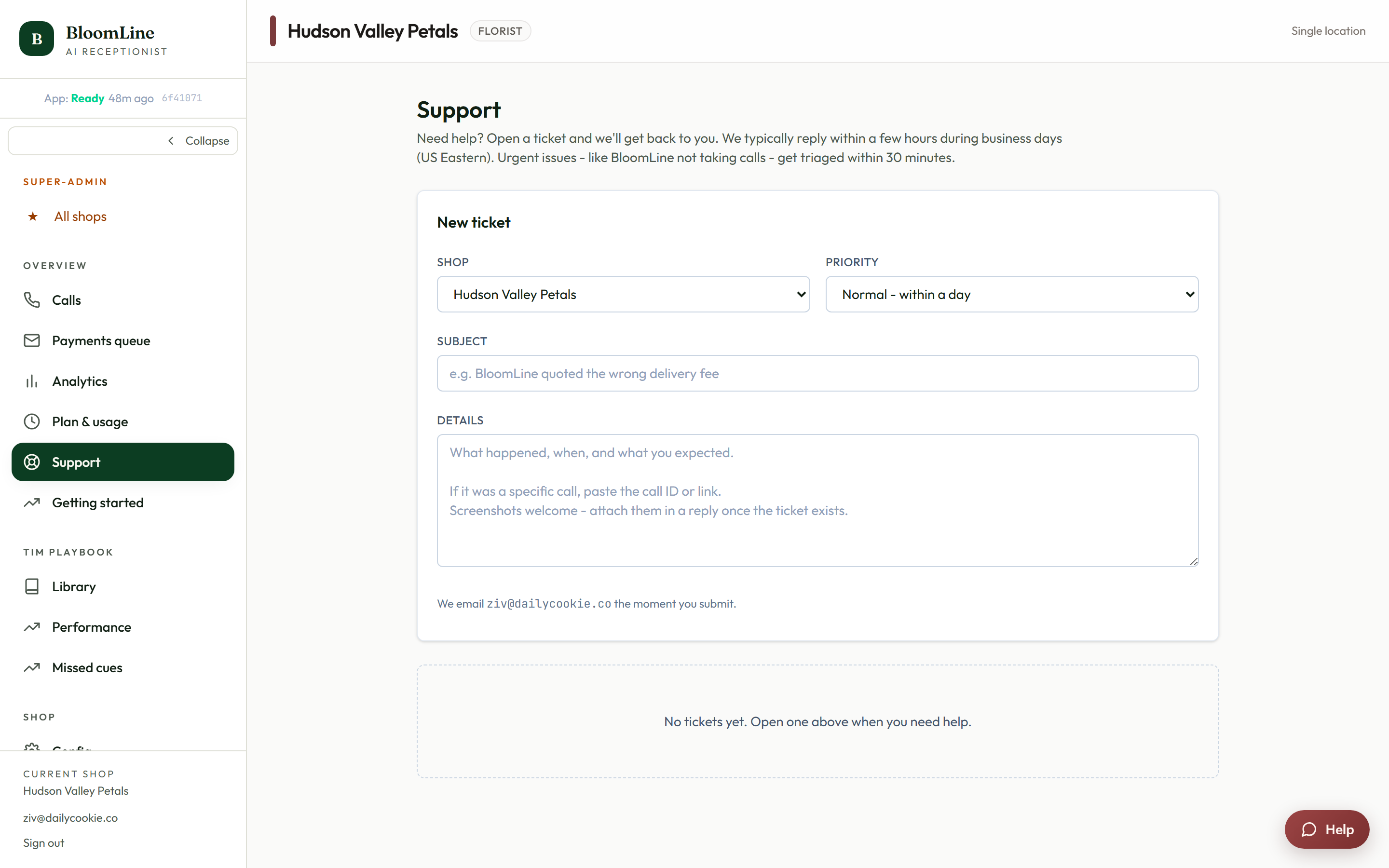
Pick the right priority
- Low - whenever: nice-to-know questions, small polish items, nothing time-sensitive.
- Normal - within a day: something is wrong but calls are still flowing. This fits most issues.
- High - within hours: a real problem hurting your shop today, like a repeated wrong answer on calls.
- Urgent - calls broken, lost revenue: your line is failing and customers cannot get through. Reserve this for genuine emergencies so urgent tickets always get immediate attention.
What to include for the fastest fix
The more concrete the ticket, the faster the resolution. Where relevant, include:
- The approximate date and time of the affected call
- The caller's number or your own test number
- What you expected versus what actually happened, quoting Riley's exact words if you have them (the transcript on the call's detail page under Dashboard > Calls is perfect for this)
- Any settings you recently changed
- If calls are failing entirely: what the /status page showed when you checked
Track the conversation and close it out
- Your tickets are listed on the Support page. Click any row to open its detail page.
- The detail page shows the full message thread with the BloomLine team. Type in the reply box and click Send reply to continue the conversation.
- When the issue is solved, click Mark resolved to close the ticket. If it turns out something is still wrong, you can always open a new one and reference the old ticket.
Still stuck? Submit a ticket from this help center and we'll take it from there.
Was this article helpful?
That’s Great!
Thank you for your feedback
Sorry! We couldn't be helpful
Thank you for your feedback
Feedback sent
We appreciate your effort and will try to fix the article