Super-admins on the BloomLine team get three extra surfaces: a roster of every shop with one-click impersonation, a cross-shop billing overview, and the approval queue for mystery-shop scenarios that shops share with the network. This article covers where each one lives and how to use it. If you're a shop owner, you won't see any of these - they're internal tools.
Open the All shops roster
When you're signed in as a super-admin, the dashboard sidebar shows an amber All shops link that regular users never see. It takes you to /admin, the roster of every shop on the platform.
The shops table gives you a one-line health check per shop:
- Shop: the shop's name
- Phone: its receptionist line
- Plan and Sub status: what they're on and whether the subscription is active
- Calls: total call volume
- Created and Last call: how long they've been around and how recently their line rang
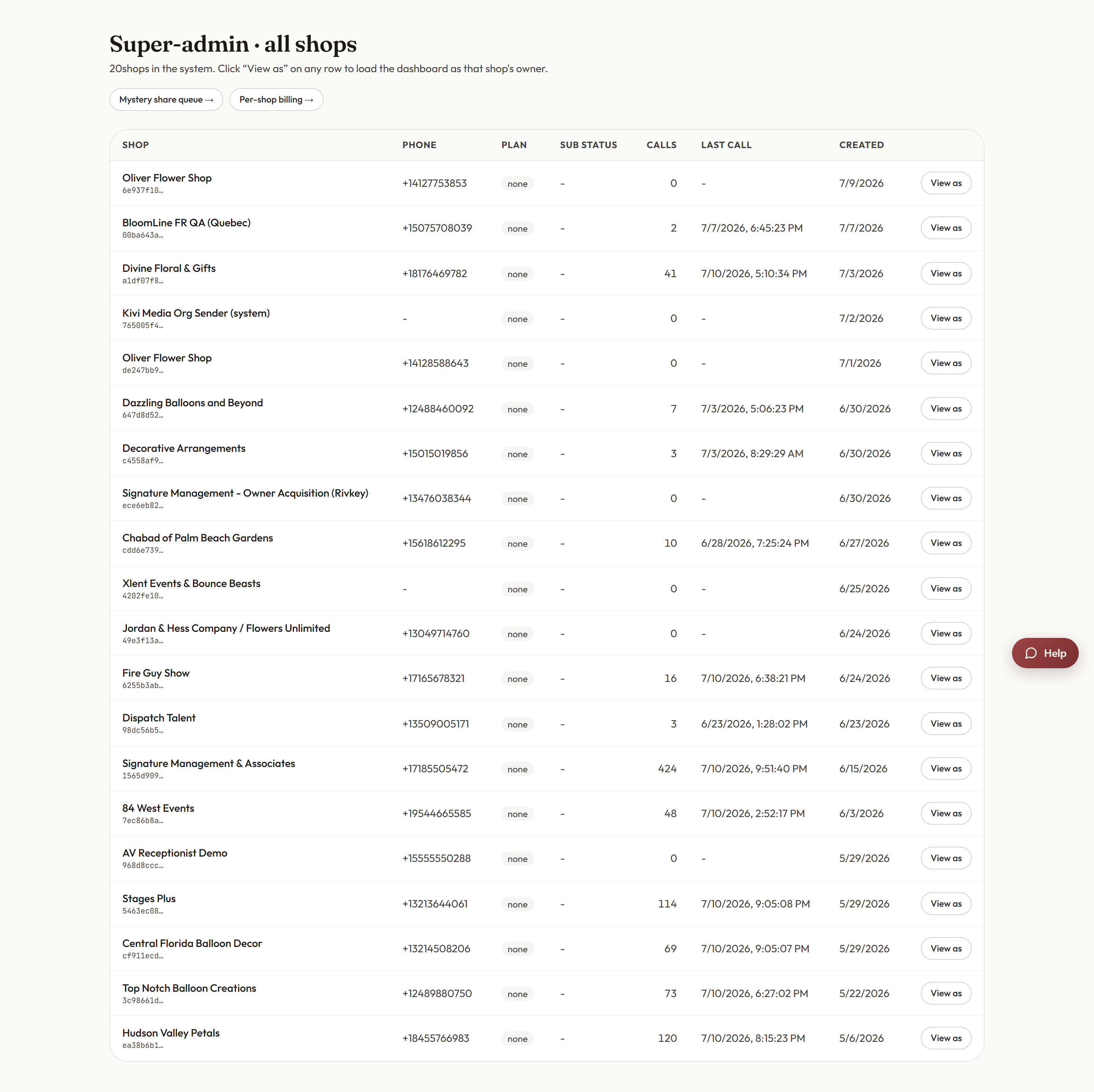
View as: see a shop's dashboard exactly as they do
Every row in the roster has a View as button. Click it to impersonate that shop: you're dropped into their dashboard with their calls, config, and playbook, exactly as the owner sees it. This is the fastest way to reproduce what a shop is reporting in a support ticket.
- Find the shop in the /admin roster and click View as on its row.
- Work inside their dashboard. An amber Super-admin view-as banner stays visible across every page so you always know you're impersonating, not in your own account.
- When you're done, exit the impersonation from the banner to return to your own view.
Treat view-as sessions carefully: anything you change is changed on the shop's live receptionist.
Cross-shop billing
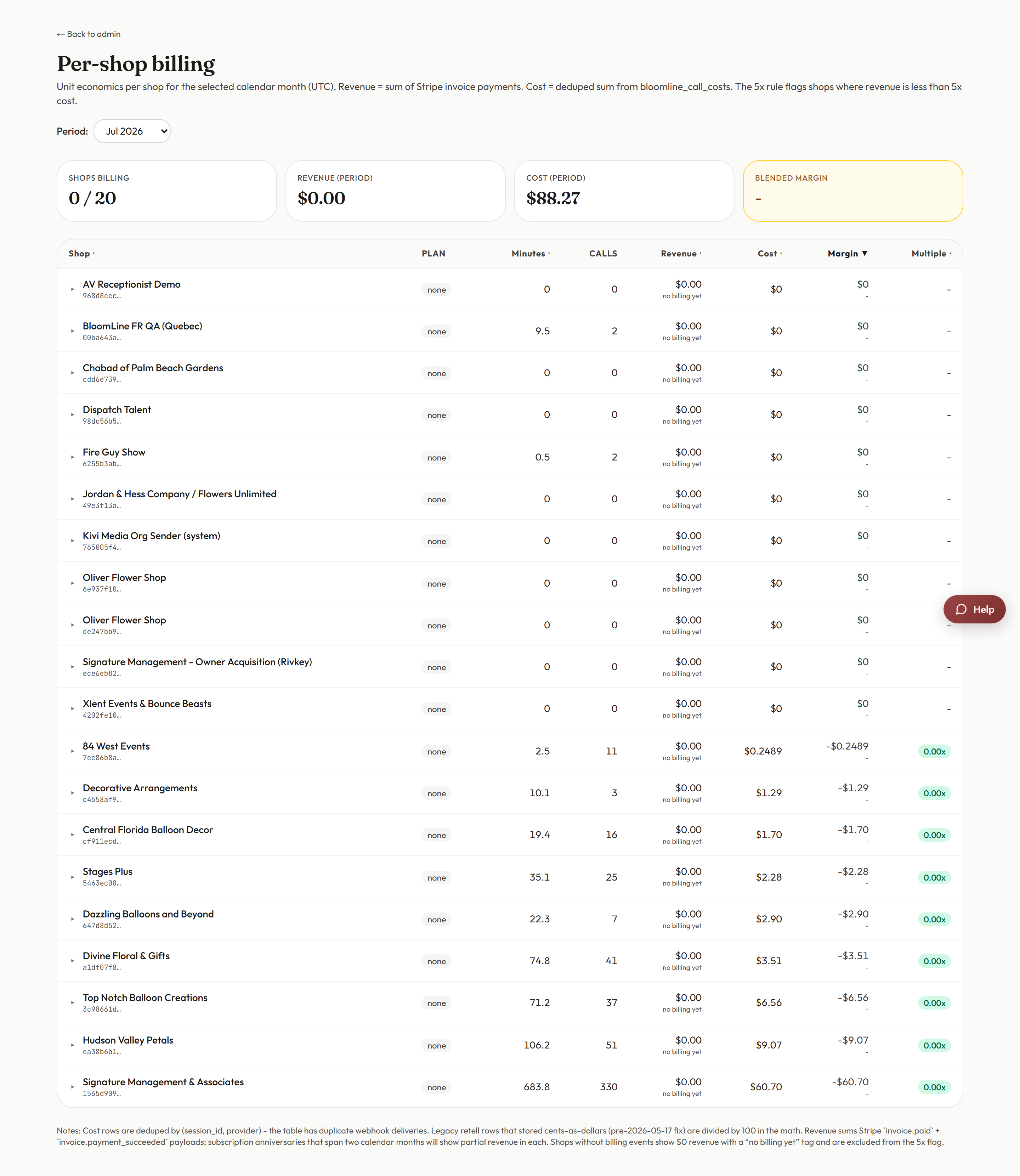
The admin billing page (/admin/billing) is the billing overview across all shops, with a billing table and stats in one place. Use it when you need the platform-wide money picture rather than a single shop's Plan & usage page.
The mystery scenario share queue
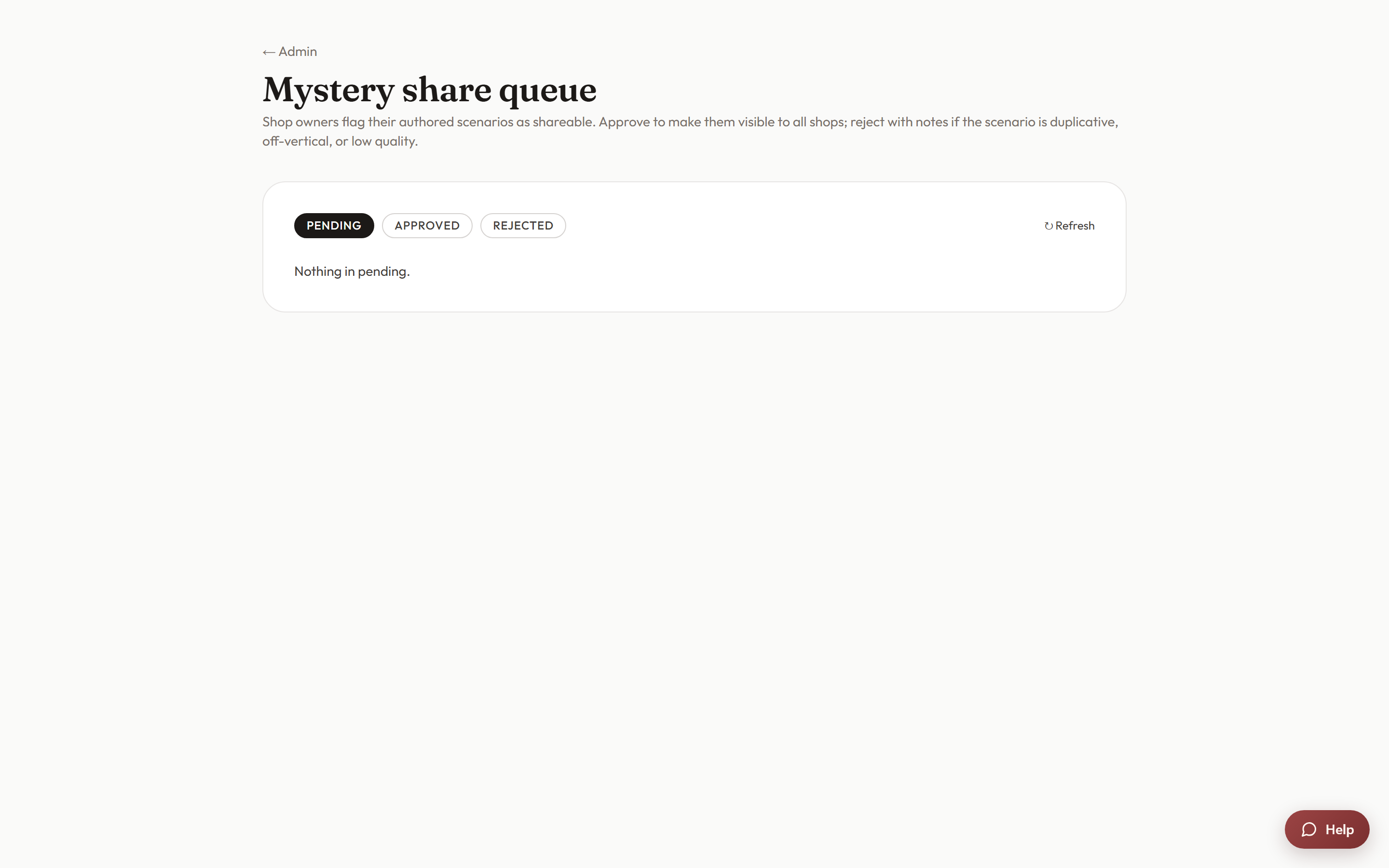
Shops can share their best mystery-shop scenarios with the whole BloomLine network, but nothing goes network-wide without a human check. That check is the share queue at /admin/mystery-share-queue.
- A shop shares one of its mystery-shop scenarios.
- The scenario lands in the share queue, waiting for review.
- You review it and click Approve on the queued scenario.
- Once approved, it appears under the Shared by network source in every shop's Mystery shopper scenario picker.
Before approving, read the scenario the way a florist will experience it: the name, description, category, tags, and tester opening lines all become visible to every shop that uses it.
Still stuck? Submit a ticket from this help center and we'll take it from there.
Was this article helpful?
That’s Great!
Thank you for your feedback
Sorry! We couldn't be helpful
Thank you for your feedback
Feedback sent
We appreciate your effort and will try to fix the article